
You're probably here for one of two reasons. Either you're trying to leave feedback for a business on Facebook and can't find the review button, or you run a business page and keep hearing customers say, “I wanted to leave a review, but there wasn't an option.”
Both problems are common. Facebook's review system isn't as obvious as it used to be, and for UK businesses the issue often isn't the customer at all. It's the Page setup. If you understand both sides, how customers leave recommendations and how business owners enable and share them, Facebook becomes far more useful as a trust signal rather than a frustrating dead end.
The New Landscape of Facebook Recommendations
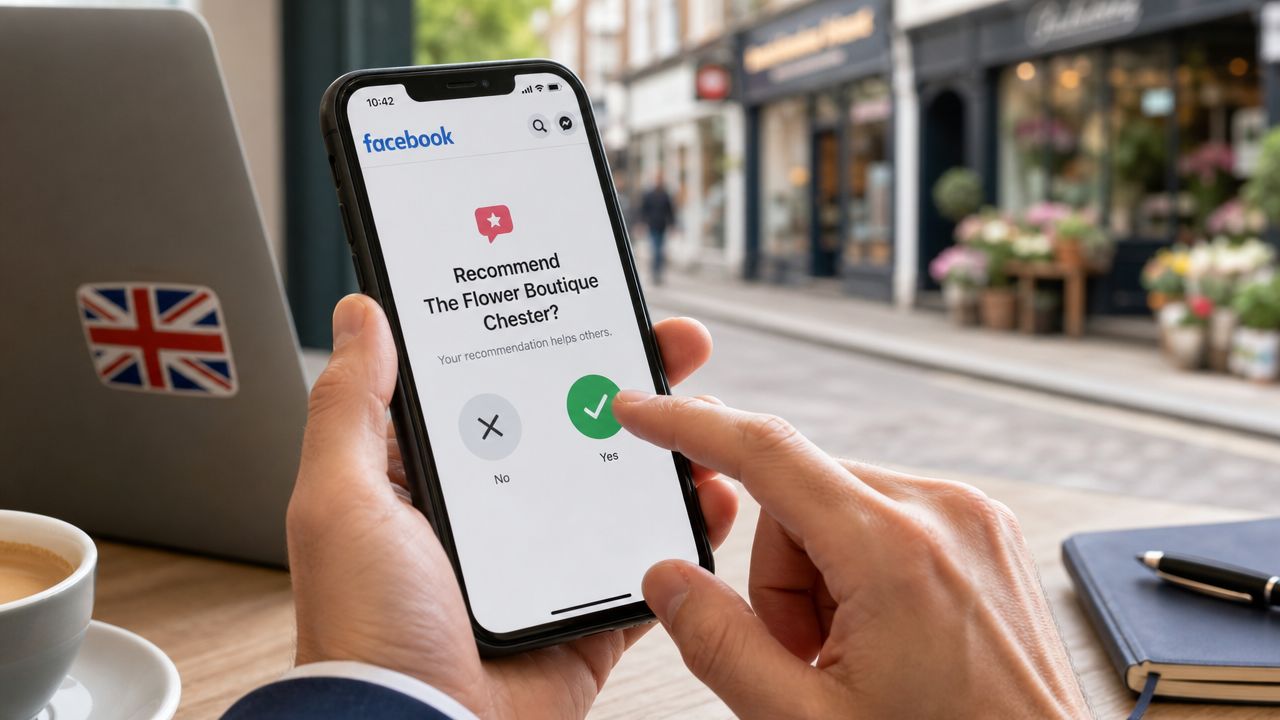
If you last looked at Facebook reviews years ago, the interface can feel off. People still say “Facebook reviews”, but Facebook business pages now use a Recommendations and Reviews format rather than the old star model. A visitor answers “Do you recommend [business name]?” with Yes or No, and can then add text, tags, and photos, as explained in ReviewTrackers' overview of Facebook reviews.
That change matters because it alters the type of feedback a business receives. Instead of a quick star tap, the platform pushes people towards a clearer endorsement or rejection. For local businesses, that tends to make recommendations feel more public and more personal.
The other point many businesses miss is visibility. These recommendations sit publicly on the Page's Reviews or Recommendations tab. They aren't private comments sent only to the business. Anyone checking your Page can read them, which means they shape first impressions before someone clicks through to your website or sends an enquiry.
Practical rule: If you want to understand how to leave reviews on Facebook, start by thinking in terms of recommendations, not star ratings.
For local firms, that creates a real trade-off. The format is simple for happy customers, but it also makes weak service harder to hide because the feedback is public and direct. That's one reason I always tell owners to test their Facebook Page the same way a customer would, especially if Facebook is part of a wider local search strategy such as SEO for wedding venues.
What this means in practice
| Old expectation | Current reality on Facebook |
|---|---|
| A visible star rating flow | A Yes or No recommendation prompt |
| Private-looking feedback assumption | Recommendations are shown publicly on the Page |
| Simple scoring mindset | More emphasis on written context, tags, and photos |
If you're a customer, the task is still straightforward once you find the right tab. If you're a business owner, the bigger lesson is that Facebook recommendations are now part review system, part public proof, and part Page management issue.
Leaving a Recommendation on Facebook Step by Step
For most users, the process is easy once you land on the right business page and the Reviews tab is available.
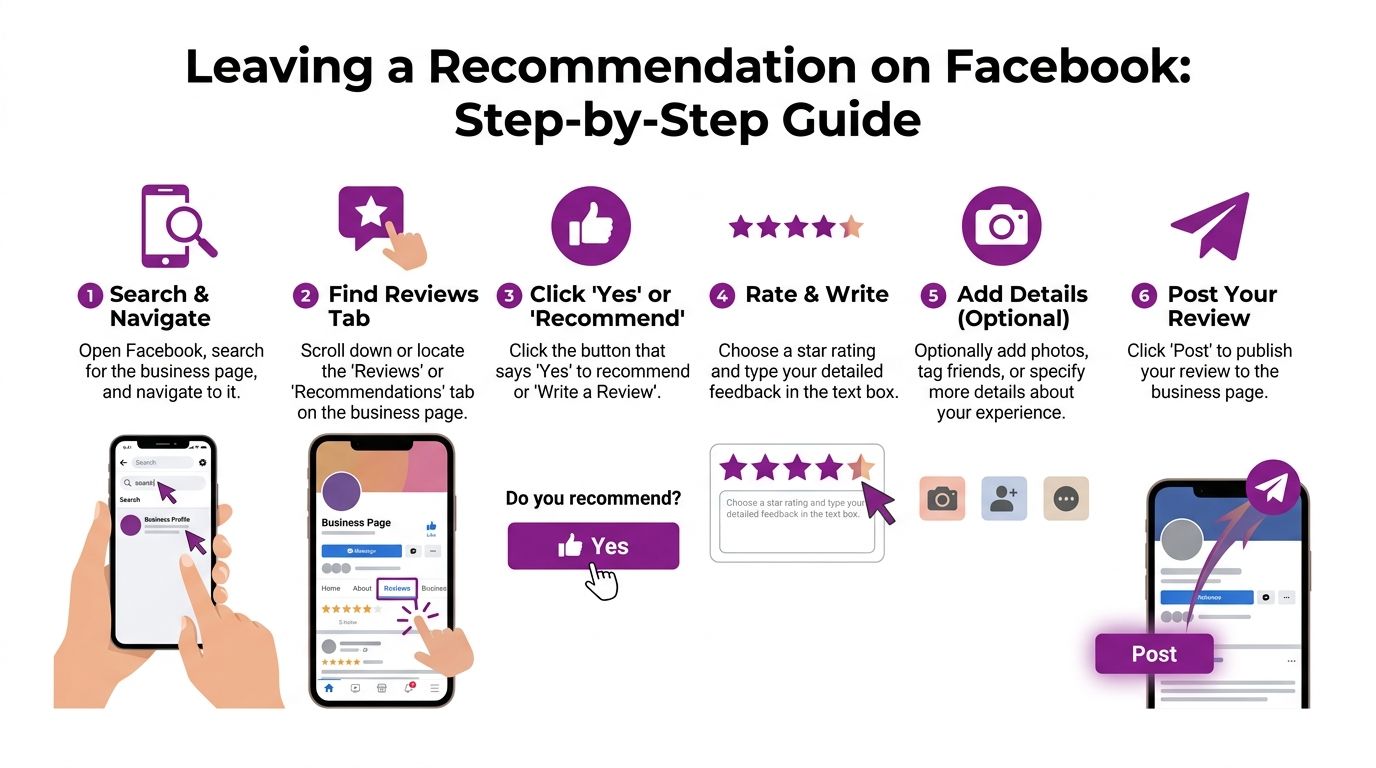
On mobile
Facebook recommendations are often left on phones, so start there if that's how you normally use Facebook.
Open Facebook and log in
Make sure you're using your own Facebook account, not just opening a shared link in a browser where you're signed out.Search for the business page
Use the search bar and open the correct business Page. Be careful with businesses that have similar names or multiple locations.Find the Reviews or Recommendations tab
Depending on the Page layout, you may need to scroll a bit. On some Pages it's obvious. On others it sits lower down among other tabs and content blocks.Answer the recommendation prompt
Facebook will typically ask, “Do you recommend this business?” Choose Yes or No.Write your feedback
Add a clear comment about what happened, what you bought, or how the service went. You can also add tags and photos.Post it
Once you submit, it appears publicly on the Page.
On desktop
Desktop is often easier if you're helping a less confident customer through the process.
- Log into Facebook first
- Open the business Page
- Click the Reviews or Recommendations area
- Choose Yes or No
- Add your written recommendation
- Upload a photo if relevant
- Post
A short demonstration can help if you're guiding staff or customers through the process:
What makes a recommendation useful
The best Facebook recommendations are specific. “Great service” is fine, but “They turned up on time, fixed the issue the same afternoon, and explained the repair clearly” is far more credible.
A useful recommendation usually includes:
What you used
The product, service, booking, or visit.What stood out
Speed, communication, quality, friendliness, or follow-up.Why you'd recommend them
This helps the next person make a decision.
Strong recommendations read like real customer experiences, not slogans.
Troubleshooting Why You Cannot Leave a Review
If the review option is missing, the usual problem isn't user error. It's the Page.

A practical Facebook workflow starts with logging into a personal Facebook account, opening the business's Page, and using the Reviews or Recommendations tab. If the tab is missing, page admins can enable it under Settings > Templates and Tabs by toggling Reviews on, as described in this step-by-step Facebook review guide.
The most common reasons the option is missing
Reviews aren't enabled on the Page
This is the first thing to check. Many businesses haven't turned the feature on.The tab is hidden by the current Page setup
Facebook changes layouts often, so the Reviews tab can be buried rather than unavailable.The Page may not be eligible in its current form
Some businesses assume every Page should have recommendations by default. That isn't always how Facebook presents it.
What a business owner should do
If customers say they can't leave feedback, don't guess. Check the Page from a non-admin view on both mobile and desktop. I've seen business owners test only from inside the admin dashboard, where things can look different.
A quick review process audit also helps if Facebook is one of several places you collect customer trust signals. That's the same mindset used when assessing local visibility through a Google Business Profile report. You need to see what the customer sees, not what the admin sees.
If the path to the recommendation form takes too many clicks, many customers won't bother finishing it.
A Business Guide to Enabling and Sharing Reviews
For business owners, this is the part that moves things forward. If Facebook recommendations aren't switched on, customers can't leave them. It doesn't matter how happy they are.
Facebook reviews must be enabled in Page settings, and the control is usually found under Templates and Tabs or Page and tagging, depending on the interface. Once active, you can share a direct link copied from the Page's Reviews tab, which is especially useful after a sale or service visit, as outlined by Reviews.io's guide to getting reviews on Facebook.
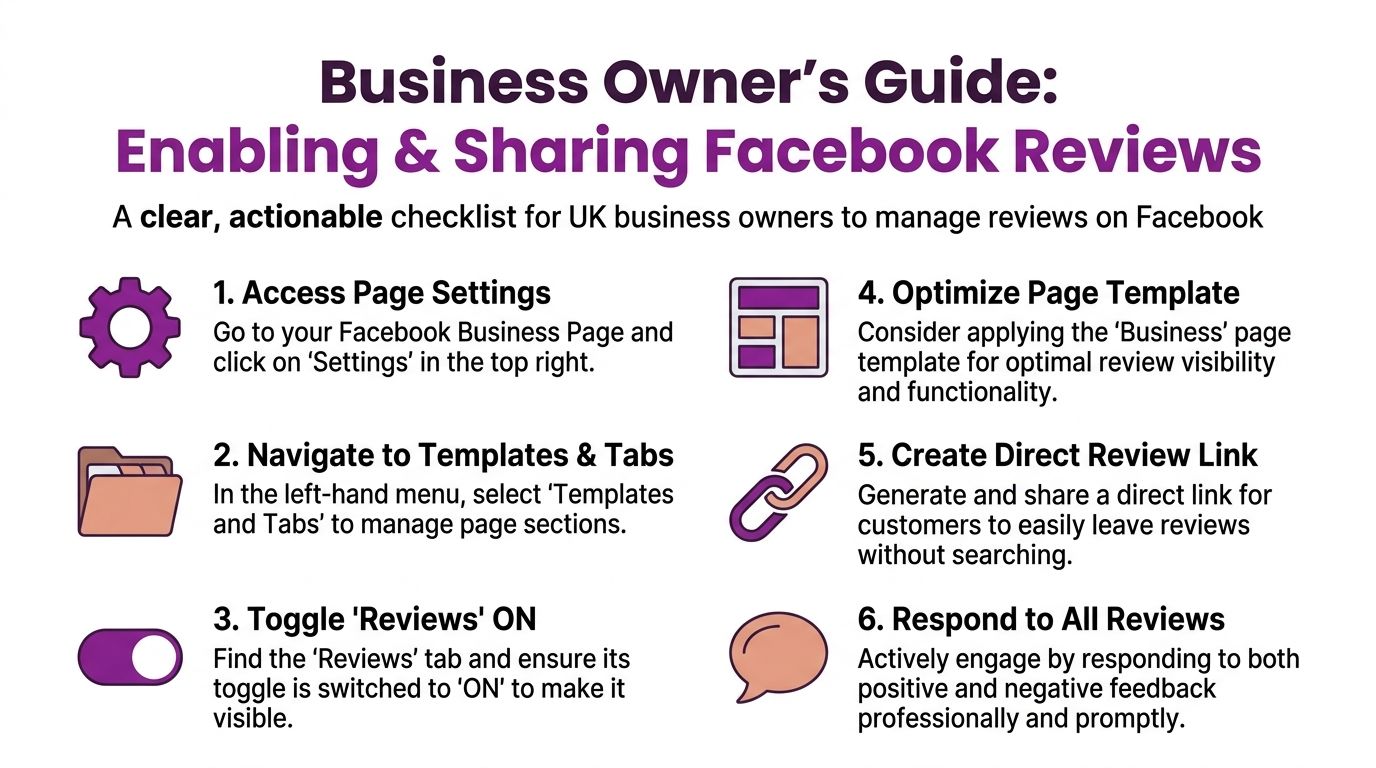
How to enable reviews on your Facebook Page
Follow this click path:
- Log into the Facebook account that manages the business Page
- Open the Page
- Go to Settings
- Look for Templates and Tabs or Page and tagging
- Turn on the option allowing others to view and leave reviews
- Check that the Reviews tab is visible on the live Page
That last step matters. Don't assume the toggle worked. Open the Page as a visitor would and confirm the tab appears.
How to get your direct review link
Once the tab is live:
- Open your business Page
- Click into the Reviews tab
- Copy the URL from that page
- Use that link in follow-up messages
This is one of the simplest improvements a local business can make. Asking customers to “find us on Facebook and leave a review” creates friction. Sending the exact Reviews link shortens the process.
Where to share it
A direct Facebook review link works best when the customer has just had a positive experience.
Good placements include:
- Follow-up emails after a completed job
- Text messages after an appointment
- Staff messages after a successful handover
- Receipts or thank-you pages for in-person businesses
- QR codes at reception desks or counters
What works and what doesn't
| Works | Usually fails |
|---|---|
| Sending the direct Reviews link | Asking customers to search for your Page themselves |
| Requesting feedback soon after service | Waiting weeks, when the experience feels old |
| Testing the Page path first | Assuming Facebook's layout is the same for everyone |
If you're already reviewing local visibility across channels, it's also worth checking your wider presence with a Google Business Profile audit tool. Facebook recommendations won't replace GBP reviews, but they complement them well.
Best Practices for Generating and Using Reviews
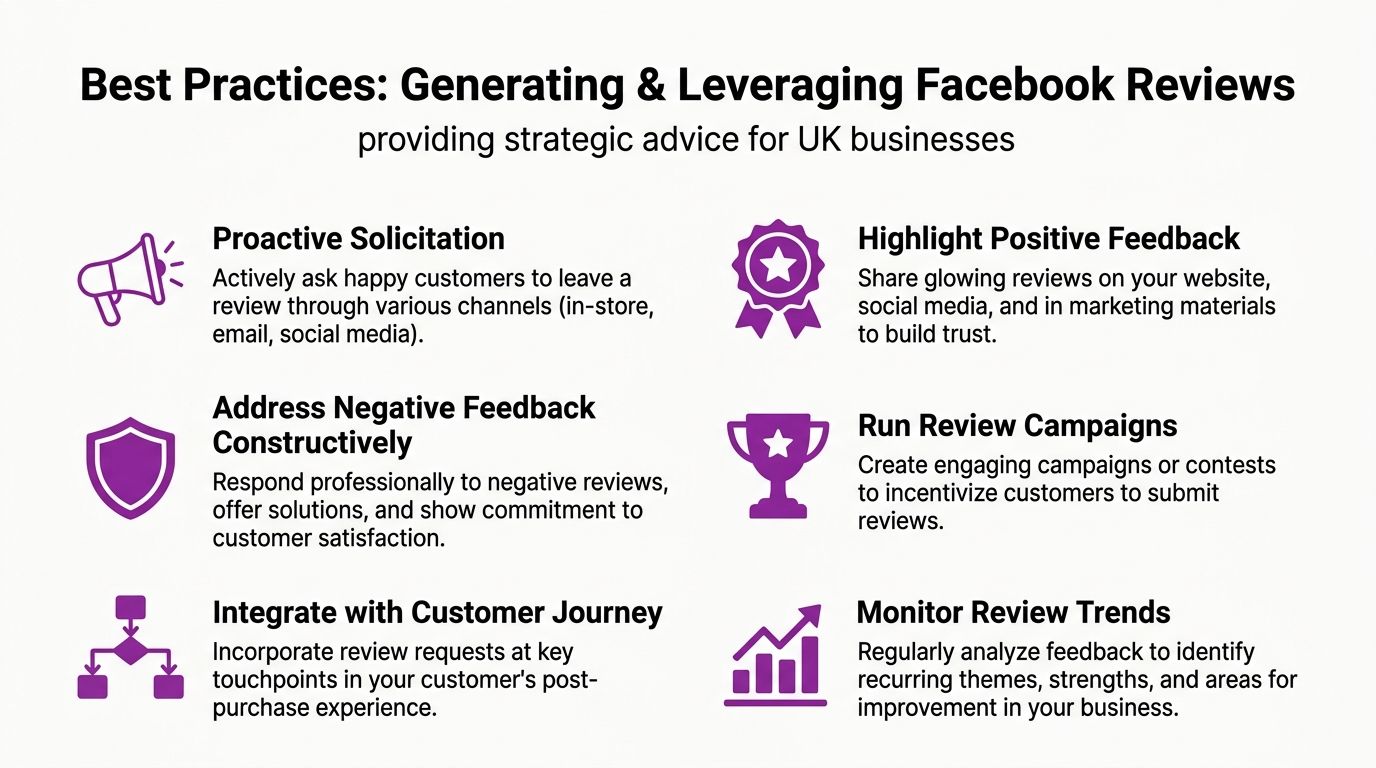
Businesses that collect Facebook recommendations consistently don't leave it to chance. They build the request into the customer journey.
For review-generation campaigns, the main technical constraint is simple. Facebook recommendations are publicly displayed on the Page and cannot be set to private, and when the reviewer is prompted to add text there is a 25-character minimum for the written comment, as covered in this YouTube explanation of Facebook review requests. That changes how you should ask. Customers need a short path and a clear prompt.
Ask at the right moment
The best time to request a recommendation is just after the customer expresses satisfaction. That might be when a job is completed, when an order arrives, or when a client sends a thank-you message.
Bad timing kills response rates. If you wait too long, the customer has to reconstruct the experience rather than react to it.
Keep the request short
Try wording like this:
We're glad you were happy with the service. If you have a minute, we'd really appreciate a recommendation on our Facebook page.
That works better than a long paragraph explaining why reviews matter to your business. Customers already understand the idea. They need the link and a simple ask.
Remove admin friction
A lot of smaller teams know they should ask for reviews but never build a repeatable process. If you're looking at solving repetitive admin with automated reviews, automation can help prompt customers at the right time instead of relying on staff to remember every time.
Reuse strong feedback
Positive Facebook recommendations shouldn't stay trapped on Facebook.
Use them in practical ways:
Website testimonials
Add screenshots or rewritten testimonial snippets with permission where needed.Sales follow-ups
Include a recent recommendation when replying to a prospect.Social content
Turn a good review into a simple graphic post.Internal training
Repeated praise often shows what your team is doing right.
A broader local SEO checklist should always include review collection, review response, and reuse of customer feedback across owned channels.
How to Handle Negative or Fake Facebook Reviews
A bad Facebook recommendation can cost you enquiries long after the original customer has moved on. In local search, people often check your latest reviews before they call, message, or click through to your site. That is why the goal is not just to answer the complaint. It is to show everyone else how you handle problems.
When the review is genuine but negative
Treat a real negative review as customer service in public.
The worst response is a defensive one. Arguing about the facts, blaming the customer, or posting internal details usually makes the situation look bigger than it is. A short, calm reply works better because it shows you are paying attention and gives the customer a clear route to sort it out.
Use a simple structure:
- Acknowledge what went wrong
- Apologise where appropriate
- Move the conversation to direct message, phone, or email
- Say what you will check or do next
For example:
I'm sorry to hear this was your experience. That's not the standard we aim for. Please send us a direct message with your booking details so we can look into it properly and work out the next step.
That reply is not written for the reviewer alone. It is written for the next potential customer reading your page.
When the review looks fake, abusive, or unrelated
Some recommendations are not genuine customer feedback at all. They may come from spam accounts, competitors, ex-staff, or profiles with no clear link to the business.
In those cases, report the recommendation through Facebook using the options menu on the post. Keep expectations realistic. Facebook does not remove every review a business disagrees with, and "I don't like this" is not enough. You usually get further when the content clearly breaks platform rules, such as harassment, hate speech, impersonation, or obvious spam.
It also helps to keep a record before you report it. Take screenshots, copy the profile name and date, and note why you believe it is fake. If the same pattern appears more than once, that record gives you something concrete to refer to.
If you reply publicly, keep it brief and factual. Something like this is enough:
We cannot match this feedback to a customer record. Please contact us directly with your details so we can investigate.
Put review monitoring into your weekly routine
Negative reviews become a bigger problem when nobody spots them for days. A lot of small businesses check Facebook only when they happen to be logged in, which is not a process.
Set one person to check recommendations, comments, and messages on a schedule. If you manage several channels and want a clearer system for tracking reputation issues across them, Sift AI for reputation monitoring is a useful reference point.
For businesses that sell on trust and visual proof, review handling affects conversion as much as visibility. That is especially true in sectors where prospects compare examples, testimonials, and social proof before they enquire, including businesses investing in SEO for photographers. A review response process beats a last-minute scramble every time.