
Think of a robots.txt file as a friendly gatekeeper for your website. It's a simple text file that leaves a set of polite instructions for visiting search engine bots, like Googlebot. In essence, it tells them which pages or files they’re welcome to look at and which ones are best left alone.
What Is a Robots Txt File and Why Does It Matter?
Imagine your website is a huge public library. The robots.txt file is the sign at the front desk telling visiting librarians (the search engine crawlers) which sections are open to everyone and which are reserved for staff only. It’s a foundational piece of technical SEO that helps guide bots to do their job more efficiently.
Its main job is to manage crawler traffic. By telling bots to ignore less important pages—like login portals, internal search results, or test environments—you stop your server from getting bogged down with unnecessary requests. This guidance helps focus a search engine's limited crawl budget on the content you actually want people to find, ensuring your key pages get discovered and indexed quickly.
Core Components and Their Functions
To get your head around how it works, you just need to know a few basic commands, or "directives." These simple instructions are the building blocks for any robots.txt file, whether it's a tiny one-liner or a complex set of rules.
To make things clearer, let's break down the essential directives you'll be working with.
Core Components of a Robots Txt File at a Glance
This table gives you a quick summary of the fundamental directives used in a robots.txt file and what each one does.
| Directive | Purpose | Example |
|---|---|---|
User-agent |
Identifies the specific web crawler the following rules apply to. The * is a wildcard for all bots. |
User-agent: Googlebot |
Disallow |
Instructs the specified crawler not to access a particular file or directory. | Disallow: /admin/ |
Allow |
Creates an exception to a Disallow rule, permitting access to a specific sub-directory or file. |
Allow: /admin/public.html |
Sitemap |
Points crawlers to the location of your XML sitemap, helping them discover all your important URLs. | Sitemap: https://www.example.co.uk/sitemap.xml |
These four directives are all you need to create a solid, functional robots.txt file that guides crawlers effectively.
The Reality of Robots Txt Implementation
Here's the thing: despite its importance, the robots.txt protocol isn't a strict command. It’s more of a gentleman's agreement—a polite request that reputable crawlers choose to follow. Understanding this is crucial, as it doesn't just affect search engines; it also plays a part in the wider legal and ethical side of web scraping, which is covered in this detailed legal guide to web scraping.
Interestingly, while it's a widely accepted standard, a surprising number of websites either get it wrong or don't have one at all. One study that crawled a million sites found that 38.65% of domains returned an error for their robots.txt file. This just goes to show how common it is for them to be set up incorrectly. For anyone willing to get it right, that's a huge opportunity to gain an edge.
How Search Engines Interact with Your Robots.txt File
When a search engine crawler like Googlebot lands on your website, its very first stop is the robots.txt file. Think of it as a bouncer at a club. Before anyone gets in, the bouncer checks the guest list to see who's allowed where. This initial check is a quick, automated, and absolutely critical first step for any crawler.
The bot immediately looks for the file at yourdomain.co.uk/robots.txt. If it exists, the bot reads it from top to bottom, line by line, looking for rules that apply specifically to it. For example, if it finds a section for User-agent: Googlebot, it'll follow those instructions. If not, it falls back to the general rules under User-agent: *.
Once the crawler understands its instructions, it starts processing the Disallow and Allow directives. These rules essentially map out its journey, telling it which paths to explore and which doors to leave closed. This whole process is the foundation for managing how search engines see your site—it’s technical SEO 101.
This simple flow chart breaks down exactly how a crawler arrives, reads the rules, and gets to work.
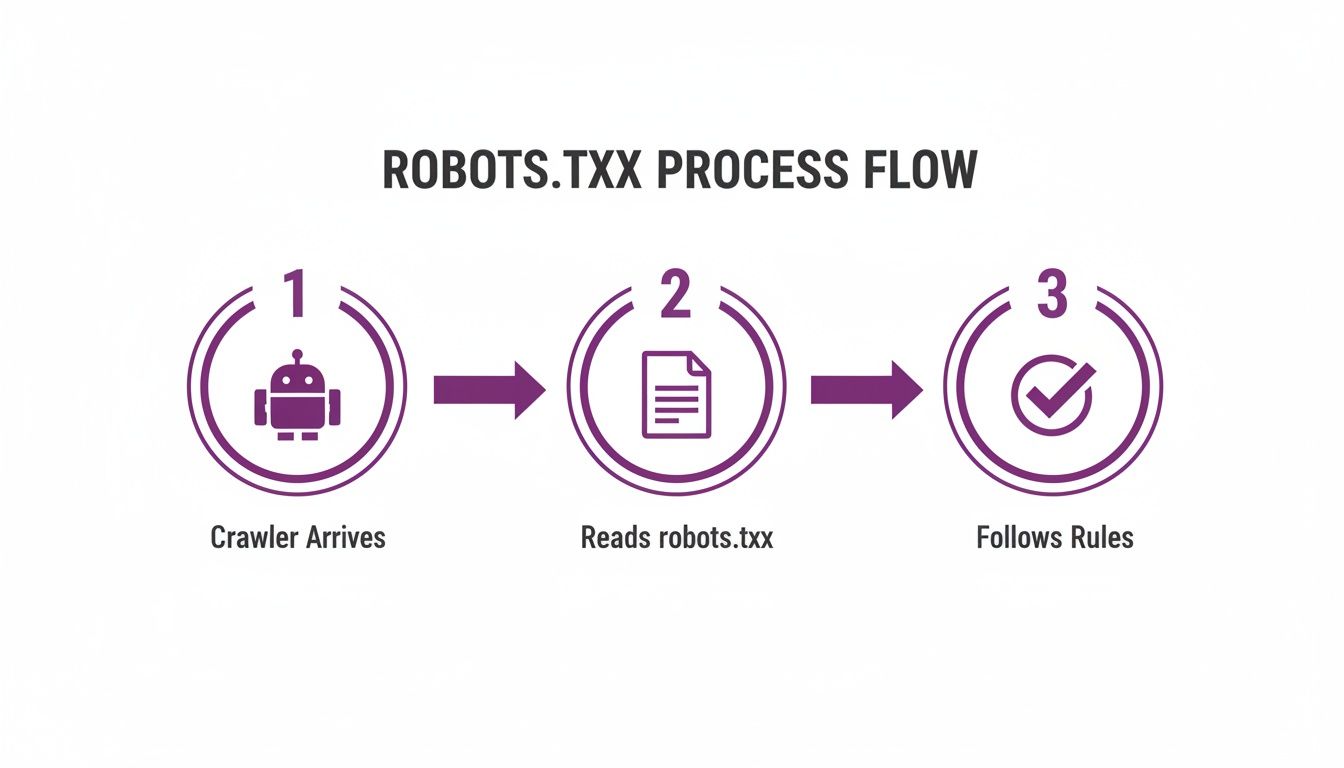
It’s a straightforward three-step dance: arrive, read, and obey. Every well-behaved bot follows this protocol without fail.
The Role of Crawl Budget
This entire interaction directly affects what's known as your crawl budget. Search engines only dedicate a finite amount of time and resources to exploring any given website. Once that budget is spent, the crawler moves on, whether it’s seen everything or not.
A smart robots.txt file is your best friend here. By blocking crawlers from unimportant pages—like internal search results, admin login areas, or flimsy thank-you pages—you stop them from wasting precious time on URLs that offer zero value to anyone searching on Google.
You’re essentially directing traffic. By steering bots away from the dead ends, you ensure they spend their time on the pages that actually matter: your core services, key products, and high-value blog content. This helps your most important pages get found and indexed far more efficiently.
This strategic guidance is especially vital for larger sites with thousands of pages, where crawl budget can get eaten up surprisingly quickly.
Following the Rules: A Protocol, Not a Command
Here’s something you absolutely need to understand: robots.txt is a set of guidelines, not a fortress wall. Reputable crawlers like Googlebot and Bingbot will always honour your rules. They're the good guys.
However, malicious bots, email scrapers, and other dodgy crawlers couldn’t care less about your robots.txt file. They will often ignore it completely.
This is why you should never, ever use robots.txt to hide sensitive or private information. It’s like putting up a polite "please do not enter" sign with the door left unlocked. For true security, you need to use proper methods like password protection on the server or applying noindex tags to specific pages.
Your robots.txt file is there to manage the good bots, making their visits as productive as possible for your site and your SEO.
Mastering Key Robots Txt Directives and Syntax
To really get a handle on what a robots.txt file is, you need to speak its language. It might look a bit technical at first, but the syntax is surprisingly straightforward once you get the hang of it. The entire file is built from a handful of core commands, known as directives, which work together to give web crawlers a clear set of instructions.

Think of your robots.txt file as a series of rule sets. Each set starts by identifying which bot the rules are for, and that’s where the User-agent directive comes in.
The User-agent Directive: Identifying the Bot
The User-agent directive is the very first line in any rule block. It names the specific crawler the instructions apply to, a bit like addressing a letter to a particular person. You can target bots one by one or use a wildcard to give the same instructions to everyone.
Here’s how it usually looks in practice:
User-agent: *: The asterisk (*) is a universal symbol that tells all crawlers to follow the rules listed below it. This is by far the most common approach for setting general guidelines for your whole site.User-agent: Googlebot: This line targets Google’s main web crawler specifically. Only Googlebot will pay attention to the rules that follow.User-agent: Bingbot: In the same way, this applies the following rules only to Microsoft's Bing crawler, Bingbot.
You can create different rule blocks for different user-agents, giving you fine-tuned control over how each bot is allowed to crawl your website.
The Disallow and Allow Directives: Setting the Boundaries
Once you’ve named the bot, it’s time to give it some commands. This is where two simple but powerful directives come into play: Disallow and Allow.
The Disallow directive tells a crawler which parts of your site are off-limits. You just need to add the relative path of the folder or file you want to block. For example, Disallow: /admin/ would stop crawlers from trying to access your admin login page. Simple.
On the flip side, the Allow directive lets you poke a hole in a Disallow rule. This is handy when you want to block an entire directory but still grant access to a specific file inside it. For instance, you could use Disallow: /private/ to block a whole folder, but then add Allow: /private/public-doc.pdf on the next line to let crawlers access just that one document.
Key Takeaway: The
Allowdirective is a specialist tool. It only works to override aDisallowrule and can’t grant access on its own.
Comparison of Common Robots Txt Directives
To give you a clearer picture, here’s a quick breakdown of the most common directives you'll encounter. Understanding the specific job of each one is key to building an effective robots.txt file.
| Directive | Function | Best Used For |
|---|---|---|
| User-agent | Specifies which web crawler a set of rules applies to. | Addressing all bots (*) or targeting specific ones like Googlebot. |
| Disallow | Instructs a user-agent not to crawl a specific URL path. | Blocking access to admin areas, search results, or duplicate content. |
| Allow | Overrides a Disallow directive for a specific sub-path or file. |
Granting access to a single file within an otherwise disallowed directory. |
| Sitemap | Points crawlers to the location of your XML sitemap. | Helping search engines discover all your important pages efficiently. |
| Crawl-delay | Asks crawlers to wait a set number of seconds between requests. | Preventing server overload on sites with limited resources (not used by Google). |
Each of these directives plays a distinct role, and using them together gives you precise control over how search engines interact with your site.
Widely Supported Directives: Sitemap and Crawl-delay
Beyond the essentials, there are a couple of other directives that have become widely adopted and add some useful functionality.
The Sitemap directive is a must-have for modern SEO. It points crawlers directly to your XML sitemap, giving them a roadmap of all the important pages you want them to find and index. Adding it is easy – just include a line like this: Sitemap: https://www.yourdomain.co.uk/sitemap.xml. If you’re not sure about sitemaps, our guide explains what is an XML sitemap in more detail.
This isn’t just a niche trick, either. A large-scale analysis of one million domains found that around 23.16% of robots.txt files include a sitemap link, proving it’s a standard best practice for improving content discovery.
Then there’s the Crawl-delay directive. While Google officially ignores it, other search engines like Bing and Yandex still respect it. This command asks bots to wait for a specific number of seconds between fetching pages, which can help reduce the strain on your server. For example, Crawl-delay: 5 tells a bot to wait five seconds before crawling the next page.
Practical Robots.txt Examples for Common Scenarios
Theory is one thing, but getting your hands dirty is what really counts. To help you get started, I’ve put together a few copy-and-paste templates that cover the most common situations for e-commerce sites, blogs, and just about any other website.

For each example, I'll explain the strategic 'why' behind the rules. This way, you can see how a few lines of text connect directly to your business goals and SEO strategy.
Example 1: The Universal "Allow All"
This is the simplest and most common setup, perfect for sites that want maximum visibility. It's like putting out a welcome mat for every web crawler, letting them know they have full access to your entire website.
If your site doesn't have any private areas, duplicate content issues, or pages you’d rather keep out of the search results, this is a completely fine approach. It guarantees you won't accidentally block anything important.
Welcome all crawlers!
User-agent: *
Disallow:
Sitemap: https://www.yourdomain.co.uk/sitemap.xml
The magic here is the empty Disallow: line – it signals that there are zero restrictions. And, of course, including the Sitemap is always a good idea.
Example 2: Blocking a Specific Directory
Most websites have folders that are of no interest to search engines. Think admin login pages, staging areas where you test new designs, or folders full of internal resources. Blocking them is essential for pointing your crawl budget toward content that actually matters.
Let's say you have a directory called /staging/ for your work-in-progress. The last thing you want is Google indexing your half-finished pages.
Keep the staging directory private.
User-agent: *
Disallow: /staging/
Sitemap: https://www.yourdomain.co.uk/sitemap.xml
This simple rule tells all bots to stay out of the /staging/ directory and everything inside it, keeping your test environment away from public search results.
Example 3: Blocking Private User Pages
For sites with user accounts—like e-commerce stores or membership sites—it’s crucial to prevent crawlers from poking around private pages like /account/, /profile/, or /login/. These pages offer zero value in search results and just burn through your crawl budget.
By disallowing these sections, you are effectively guiding search engines to spend their time and resources on your public-facing product pages and content, which is where the real SEO value lies.
Here’s how you can fence off several common user-related directories:
Block private user account and login pages.
User-agent: *
Disallow: /account/
Disallow: /profile/
Disallow: /login/
Disallow: /checkout/
Sitemap: https://www.yourdomain.co.uk/sitemap.xml
This setup ensures that bots steer clear of personal user areas, focusing instead on the parts of your site that are meant for everyone.
Example 4: Preventing Duplicate Content Issues
Internal search result pages are a classic source of duplicate or thin content. When someone searches on your site, it might generate a URL like yourdomain.co.uk/search?q=seo. This page is just a collection of content that already exists elsewhere, which can dilute your SEO authority.
Blocking your internal search path is a standard best practice to sidestep these problems. The wildcard (*) is the perfect tool for the job.
Block internal search results to avoid duplicate content.
User-agent: *
Disallow: /search*
Sitemap: https://www.yourdomain.co.uk/sitemap.xml
This rule blocks any URL that starts with /search, catching all the different pages your site search generates. It's a great way to keep your index clean and focused.
Example 5: Blocking a Single File or File Type
Sometimes, you need to be more surgical. You might want to block a specific file, like a sensitive PDF document, or an entire category of files. You can do this with precise Disallow rules.
-
To block a single PDF file: This is handy for internal reports or lead magnets you don't want showing up in search results.
Disallow: /documents/confidential-report.pdf -
To block all PDF files: This rule uses wildcards to stop any file ending in
.pdffrom being crawled.Disallow: /*.pdf$
The dollar sign ($) in that second example is important. It tells the crawler to only block URLs that end with .pdf, so you don't accidentally block a folder that just happens to have "pdf" in its name.
Common Robots Txt Mistakes and How to Avoid Them
Even a tiny typo in your robots.txt file can throw a massive spanner in the works for your SEO, sometimes with disastrous results. We’ve seen it all—from businesses accidentally blocking their entire website to having their carefully crafted rules completely ignored.
These mistakes are surprisingly common, but the good news is they’re also simple to avoid once you know what to look for.
Getting this file right is one of the first things we check in any technical SEO strategy. A misconfigured file can lead to crawlers missing your most important content or, just as bad, wasting their time (and your crawl budget) on pages you don’t care about. It can even lead to baffling issues like pages being crawled but not indexed, which is why it's so important to fix crawled but not indexed pages to protect your site's visibility.
Incorrect File Name or Location
This one trips people up more than you’d think, and it’s probably the most damaging mistake of all. Search engine crawlers are programmed to look for one specific file in one specific place, and they don’t make exceptions.
-
File Name: The file must be named
robots.txt, all in lowercase. Anything else—robot.txt,Robots.txt, orrobotstxt.txt—simply won't be seen by crawlers. They’ll just move on. -
File Location: It has to live in the root directory of your domain. For a site like
www.example.co.uk, the file path must bewww.example.co.uk/robots.txt. If you stick it in a subfolder like/public_html/, it’s as good as invisible.
If the file isn’t in the right place with the right name, crawlers will assume you don’t have one and will just crawl everything without any rules.
Syntax Errors and Typos
The syntax for robots.txt is straightforward, but it’s incredibly unforgiving. A single misplaced character or a simple typo can invalidate a rule or even the entire file. A classic slip-up is misspelling a directive, like typing Disalow instead of Disallow.
Another critical one is messing up wildcards. Take the forward slash /, for example. On its own, it’s one of the most powerful—and dangerous—commands you can use.
Disallow: /
This single line tells every crawler to stay away from your entire website. It's a "do not enter" sign for the whole property. You should only ever use this if you genuinely want your site to be completely invisible to search engines, which is an extremely rare situation.
Tiny mistakes like these can make your instructions useless or, far worse, block access to pages you desperately want indexed. Regular auditing is the only way to catch these issues. We cover this in detail in our technical SEO audit checklist.
Using It as a Security Tool
This is a huge and dangerous misconception. Many people think robots.txt can be used to hide sensitive information, but that’s absolutely not what it’s for.
Think of it as a polite request on a welcome mat, not a locked front door. Well-behaved crawlers will follow the rules, but malicious bots and scrapers will walk right past it. Your robots.txt file is public, meaning anyone can see which parts of your site you're trying to hide.
Never use robots.txt to block access to things like:
- Admin login pages (especially with weak passwords).
- Directories containing private user data.
- Confidential documents or reports you don’t want public.
For real security, you need proper tools like password protection, server-side authentication, or simply keeping sensitive files outside of the web-accessible root folder.
Exceeding File Size Limits and Other Pitfalls
Finally, always remember that robots.txt is a request, not a command. As Google confirms, it’s for managing crawler traffic, not for keeping a page out of its index.
Research into UK domains has shown just how often people get this wrong. One study found at least 13 cases of misnamed files in a small sample, which means those sites had no crawling rules in place at all.
It's also worth noting that Google has a 500 KiB file size limit. If your file is bigger than that, their bots might ignore part or all of it. Keep your file clean, concise, and error-free, and it’ll do its job perfectly.
Right, let's talk about testing your robots.txt file. Before you even think about uploading a new or updated version to your website, you absolutely have to test it. This isn't just a suggestion; it's a critical step.
Think of it like this: your robots.txt file is a set of instructions for search engines. A single misplaced character—a typo or a stray forward slash—can be misinterpreted. The worst-case scenario? You accidentally tell Google to ignore your entire website, and your rankings plummet overnight. It happens more often than you'd think.
So, how do you make sure your instructions are crystal clear? You test them.
Thankfully, there are some brilliant tools designed for exactly this purpose. They let you see your robots.txt file through the "eyes" of a search engine crawler, so you can catch any mistakes before they cause any real damage to your site's visibility.
Using Google Search Console's Robots Txt Tester
When it comes to validating your file for Google, the best place to go is the source. The robots.txt Tester inside Google Search Console is the gold standard.
This free tool is part of a much larger suite that helps you monitor your website's performance in Google Search. If you haven't set it up yet, you're missing out on a huge amount of valuable data. Our guide on what is Google Search Console is a great place to start.
The tester does two main things really well. First, it scans your code for any syntax errors or logical wobbles, like having conflicting Allow and Disallow rules for the same URL. Second, and most importantly, it lets you simulate how Googlebot will actually interpret your rules.
Here’s a quick rundown of how to use it:
- Paste Your Code: Just copy the full text from your
robots.txtfile and pop it into the editor. - Look for Errors: The tool will immediately flag any syntax problems or logical errors it finds.
- Test Specific URLs: This is where the magic happens. Grab a URL from your website—maybe an important product page you want to ensure is crawlable, or a private admin page you want to block.
- Choose a User-agent: You can specify which of Google's bots you want to test against, like the standard Googlebot or Googlebot-Image.
- Run the Test: Hit the "Test" button. You’ll get an instant verdict: Allowed or Blocked. No guesswork needed.
This simple process gives you complete certainty. You'll know for a fact that your key pages are visible to Google and your restricted areas are properly locked down.
Other Useful Third-Party Testing Tools
While Google Search Console is your go-to for checking rules for Googlebot, it's always a good idea to get a second opinion. A few third-party validators are out there that can offer a slightly different perspective.
These online tools usually work in a similar way—you paste in your robots.txt code and they give you instant feedback on its structure and syntax. They're perfect for a quick sanity check and can sometimes catch things that GSC's tester might not prioritise.
Using a combination of Google's official tool and a trusted third-party validator gives you a rock-solid process for getting your robots.txt implementation right every single time.
Taking a few extra minutes to test and validate your file is one of the smartest things you can do for your technical SEO. It means you can hit 'upload' with confidence, knowing your instructions are clear, correct, and doing exactly what you want them to do.
Got Questions About Robots.txt?
To wrap things up, let's tackle a few common questions that pop up when people first start working with robots.txt files. These are the quick, clear answers you need to clear up any lingering confusion.
Will Blocking a Page Remove It From Google?
Not exactly. Using the Disallow directive is like putting up a "Do Not Enter" sign for crawlers. It stops Google from crawling the page from that point on, but it doesn't erase it from memory.
If the page is already indexed or has links pointing to it from other sites, it can still show up in search results. You'll often see the page title but a blank description, which doesn't look great.
For a reliable removal, you need to use a 'noindex' meta tag directly on the page itself. If you want to keep something completely private, password-protecting the directory is the only foolproof method.
Where Should I Place My Robots.txt File?
This one is non-negotiable: your robots.txt file must live in the root directory of your website. It’s the very first place a search engine bot looks before it starts crawling.
So, for a site like www.example.co.uk, the file needs to be accessible right here: www.example.co.uk/robots.txt.
If you stick it in a subdirectory, crawlers won't find it. They'll just assume you don't have one and will proceed to crawl everything they can find.
Can I Have Different Rules for Different Search Engines?
Absolutely. This is where robots.txt gets really useful. You can set up specific rules for different web crawlers by using their unique User-agent name.
For instance, you might want to give Googlebot free rein but restrict Bingbot from certain areas. It's simple to do.
User-agent: Googlebot
Disallow: /private-for-google/User-agent: Bingbot
Disallow: /not-for-bing/
Any rules you list under a specific user-agent will only apply to that bot. This gives you incredibly granular control over how different search engines see and interact with your site's content.
Ready to make sure your website's technical SEO is working for you, not against you? Bare Digital offers a free SEO Health Check to pinpoint issues and build a plan that gets results. We deliver market-leading performance with transparent reporting and flexible contracts. Get your free, no-obligation SEO proposal today and see how we can drive real growth for your business.