
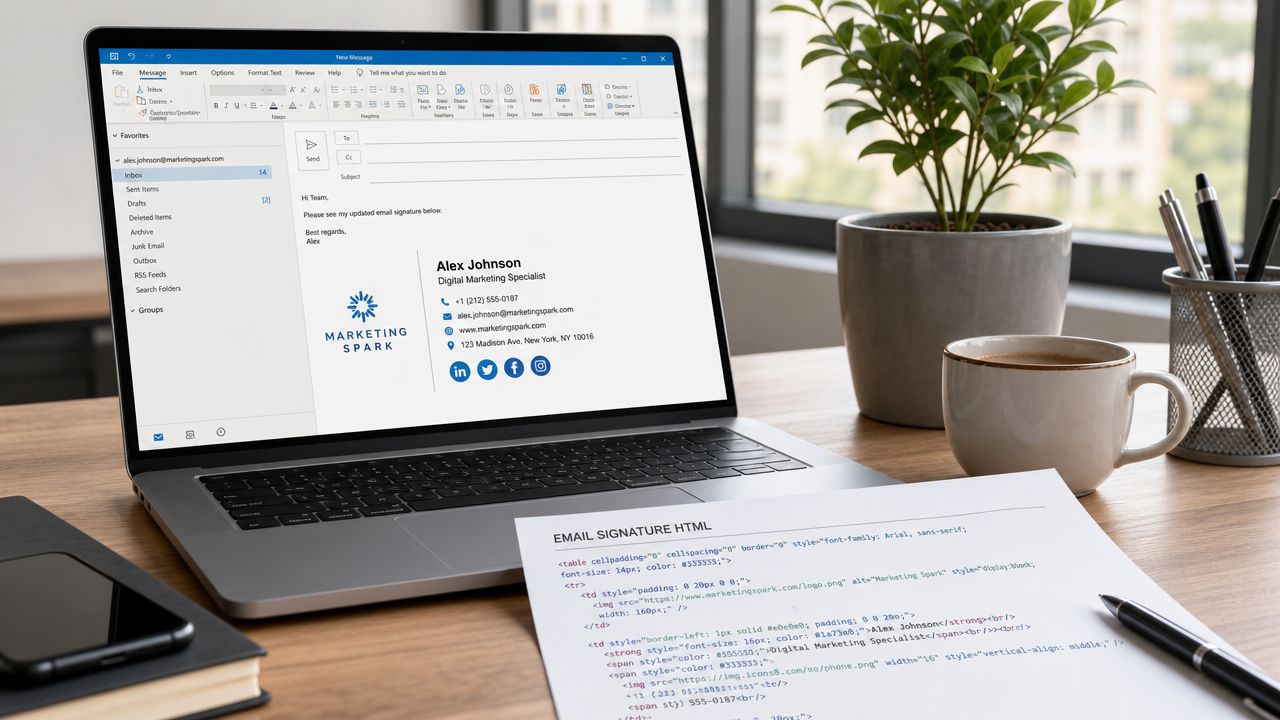

You've probably got one right now. An email signature that started as “good enough”, then picked up a logo, a mobile number, a disclaimer, maybe a social icon or two, and now behaves slightly differently in Gmail, Outlook, and on your phone.
That's normal. HTML in an email signature sits in one of the most awkward corners of the web. It looks simple, but email clients still handle HTML like it's a much older internet. The result is familiar: broken spacing, oversized logos, missing images, links that aren't tracked, and signatures that feel like branding clutter instead of business assets.
For a UK business, that's a missed opportunity. Every sales reply, booking confirmation, quote email, support response, and supplier message carries a footer. Used properly, that footer can support trust, local relevance, and lead generation. Used badly, it's just visual noise with compliance risk attached.
Why Your HTML Signature Matters More Than You Think
A sales enquiry lands in your inbox at 4:47 pm. You reply quickly with a quote, your mobile number, a link to your service page, and your office location in the signature. The prospect does not visit your homepage first. They click from that email, check that you are nearby, and decide whether to call. That is the primary purpose of an HTML signature.
For a UK business, the signature is a repeated touchpoint that sits inside high-intent conversations. It shows up in quote replies, booking confirmations, support emails, and follow-ups. Those messages often get more attention than marketing emails because the recipient already has a reason to read them.
Research gathered in UK email signature statistics from Wave Connect shows that many businesses already use signatures as a marketing channel and track clicks from them. That matters because a signature can do useful work without asking your team to create another campaign. It can send people to a location page, a booking link, a review profile, or a service page built for the town they searched.
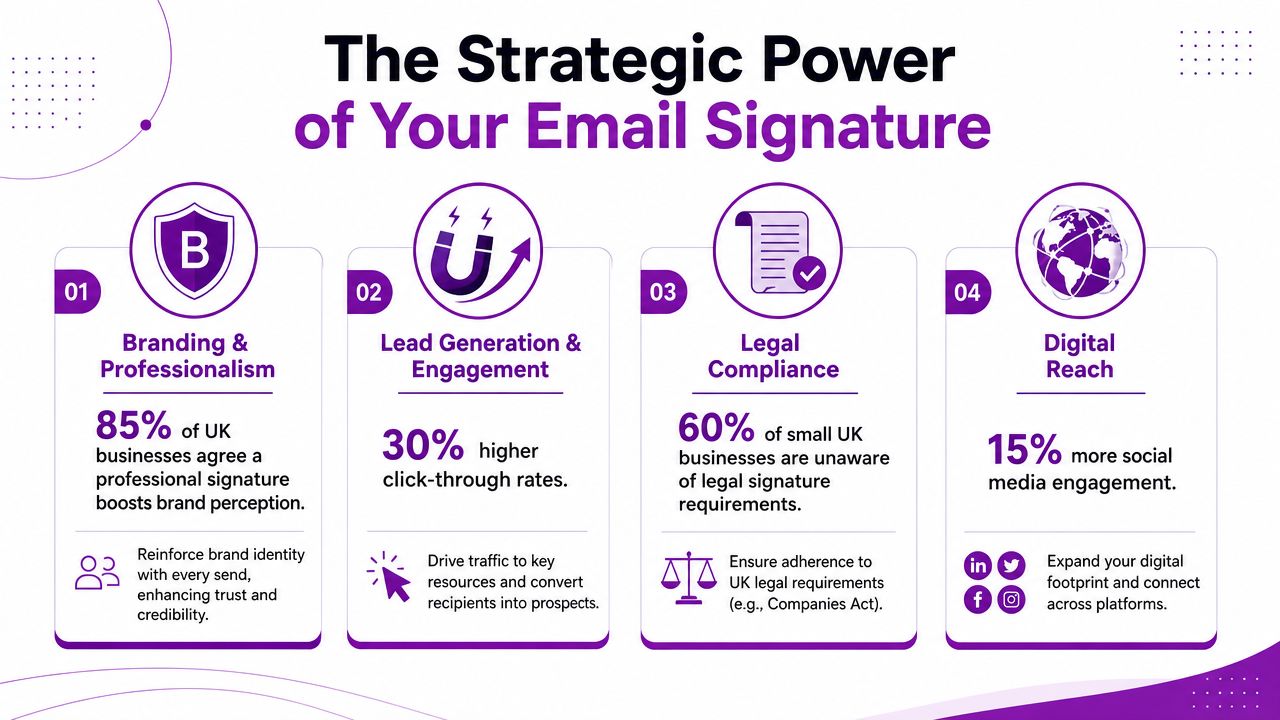
It shapes trust and local intent fast
Recipients make a judgement in seconds. A clean signature with a real person's name, job title, direct phone number, company domain, and a clear location feels credible. A bloated signature full of badges, six links, and oversized graphics feels careless.
Local relevance matters here. If you serve Manchester, Bristol, Kent, or a defined multi-branch area, say so plainly. A town or office line will not turn an email into an SEO ranking factor on its own, but it does reinforce the same location signals your website, Google Business Profile, and local landing pages should already be using. It also helps the recipient answer a simple buying question. Are you near me, and do you work in my area?
That is why I treat the signature as part branding, part conversion path. It should help a prospect do one next thing.
It also gives you measurable lead-gen value
A signature earns its place when it produces clicks, calls, and booked conversations. That usually means one primary call to action, not a row of competing options. For a local service business, the best link is often not the homepage. It is the booking page, the contact page, the Google review profile, or the service page for the area you want more enquiries from.
If you want to measure whether HTML is worth the effort at all, this B2B email format comparison gives useful context on how HTML and plain text serve different jobs. In practice, the signature is one of the few places where a small amount of HTML can improve usability without turning a normal business email into a promotional blast.
A disciplined setup usually covers four jobs:
| Signature job | What it should do |
|---|---|
| Identity | Confirm who sent the email and how to reach them |
| Trust | Show a consistent brand and a real local presence |
| Action | Send the reader to one high-value page or contact route |
| Compliance | Include the company details your business needs to display |
It is part of operational hygiene too
Business email signatures also carry legal and administrative weight. Company details need to be presented clearly and consistently. That includes your registered business information where appropriate, especially for limited companies.
This is also where teams lose control. Sales adds one version. Support uses another. Directors paste in a longer one with extra logos. Within a few months, the business has five signatures, no tracking standard, and no reliable way to tell which links are generating leads.
The better approach is central control with realistic limits. Keep the design simple, keep the links purposeful, and give every employee the same core structure. If local visibility is part of your growth plan, align the signature with the same conversion pages and local search priorities used in Bare Digital's local SEO work.
A good HTML signature does not need to look clever. It needs to be readable, clickable, compliant, and worth measuring.
How to Code a Bulletproof HTML Email Signature
The first hard truth is that email HTML isn't modern web HTML. If you build a signature the way you'd build a landing page, it will break.
That's why the safest approach still looks old-fashioned. The most reliable implementation pattern is a table-based layout with inline CSS, because email clients render advanced CSS inconsistently. Guidance on email signature coding restrictions from Email Signature Rescue recommends <table> containers and avoiding external stylesheets for better results across Outlook, webmail, and mobile clients.

Why tables still win
On the web, tables for layout feel dated. In email, they're still the practical choice. Outlook in particular can behave unpredictably with div-based layouts, margin-heavy styling, and more modern CSS properties.
A table gives you something email clients handle more consistently:
- Predictable structure. Rows and cells tend to hold together better than floated or flex-based layouts.
- Less rendering drift. Inline styles attached directly to elements survive email client stripping more reliably.
- Cleaner installation. When users paste signatures into Gmail or Outlook, simple table markup is less likely to collapse.
If you're comparing plain text against HTML for business communication more broadly, this B2B email format comparison is a useful companion read because it helps frame where formatting adds value and where it becomes unnecessary.
What a good signature includes
Keep the structure basic. Most businesses need:
- Name and job title.
- Company name.
- Phone number and email.
- Website link.
- One logo or headshot.
- One optional CTA or social link.
- Company disclosure details if required.
That's enough for most use cases. The more blocks you add, the more likely the signature becomes fragile.
Keep the code boring. Boring code survives Outlook.
A simple HTML template
Below is a practical template structure. It isn't fancy, and that's the point.
<table cellpadding="0" cellspacing="0" border="0" style="font-family: Arial, Helvetica, sans-serif; font-size:14px; line-height:20px; color:#333333;">
  <tr>
    <td valign="top" style="padding-right:12px;">
      <img src="https://yourdomain.co.uk/logo.png" alt="Company logo" width="80" style="display:block; border:0;">
    </td>
    <td valign="top" style="border-left:1px solid #cccccc; padding-left:12px;">
      <div style="font-size:16px; line-height:22px; font-weight:bold; color:#111111;">Jane Smith</div>
      <div style="color:#555555;">Director</div>
      <div style="padding-top:6px;">
        <a href="tel:01234567890" style="color:#8e24aa; text-decoration:none;">01234 567890</a><br>
        <a href="mailto:[email protected]" style="color:#8e24aa; text-decoration:none;">[email protected]</a><br>
        <a href="https://www.yourdomain.co.uk" style="color:#8e24aa; text-decoration:none;">www.yourdomain.co.uk</a>
      </div>
      <div style="padding-top:8px; color:#666666; font-size:12px; line-height:18px;">
        Serving Leeds and West Yorkshire<br>
        Your Company Ltd. Registered in England and Wales. Company No. XXXXXXXX.<br>
        Registered office: Your Address Here
      </div>
    </td>
  </tr>
</table>
Coding rules that save headaches
A few habits make a big difference:
- Use inline CSS only. Don't rely on
<style>blocks in the head. - Use pixel values. Email clients are less predictable with fluid sizing in signatures.
- Stick to email-safe fonts. Arial, Helvetica, Georgia, Tahoma, Verdana, and Times New Roman are safer than custom brand fonts.
- Avoid clever layout tricks. No forms, no JavaScript, no animated complexity.
- Don't fake spacing with empty paragraphs. That often causes odd gaps in Outlook.
Here's what usually fails:
| What people try | What happens |
|---|---|
| Div-based responsive layout | Breaks or shifts in Outlook |
| External CSS | Stripped or ignored |
| Large banners | Bloats the signature and hurts readability |
| Custom web fonts | Falls back inconsistently |
| Too many links | Weakens focus and scanability |
The best HTML in an email signature doesn't feel advanced. It feels stable.
Managing Images and Tracking Signature Performance
Most signature problems aren't really coding problems. They're asset problems.
A signature can be perfectly structured and still look poor if the logo is too heavy, the headshot is fuzzy, or the links go nowhere useful. These factors dictate whether the signature serves as a clean lead-gen asset or a drag on every message your team sends.
Keep images small and deliberate
There's a practical benchmark for signature footprint. Keep the rendered asset under 100 KB and within roughly 300 to 600 px in width. Headshots should sit around 50 to 100 px, and links should be trackable so performance can be measured, based on MailerLite's email signature best-practice guidance.
That advice matters because email clients don't reward oversized assets. Large images load slowly, rescale badly, and make signatures feel like ads.
Use this checklist before you upload anything:
- Host images on your own website. Don't link to a local file on your computer.
- Use absolute HTTPS URLs. Relative paths won't work in email clients.
- Add alt text. It helps when images are blocked and improves accessibility.
- Optimise before upload. Resize the image to its display size instead of forcing the email client to shrink it.
Choose one primary action
A signature should help the recipient do the next sensible thing. Usually that means one of these:
- Call your office
- Visit a service page
- Book an appointment
- View a location page
What it shouldn't do is present six competing actions. When everything is a CTA, nothing is.
For local businesses, the strongest CTA is often location-aware. “Book a survey in Sheffield” is stronger than “Learn more”. “View our Leeds clinic” is stronger than a generic homepage link. The principle is simple: the closer the CTA is to the recipient's likely intent, the more useful the signature becomes.
A signature works best when it behaves like a signpost, not a brochure.
Track links properly
If you can't measure signature clicks, you're guessing. Add tracking parameters to the website links in your signature so analytics tools can separate signature traffic from other sources.
A practical setup looks like this in plain terms:
- Start with the destination URL you want people to land on.
- Add campaign parameters that identify the channel as email signature traffic.
- Use consistent naming across the business so reports stay readable.
- Check the final link manually before rollout.
For example, a storage operator might send prospects to a branch page or pricing page with campaign tagging attached, then compare those visits against enquiries. If you want a simple commercial model for that kind of thinking, this self-storage ROI calculator for SEO shows how useful it is when traffic sources are tied back to real outcomes.
Avoid the common image mistakes
The usual failures are easy to spot:
- Logo too large. It dominates the message.
- Image-only signature. Looks nice until images are blocked.
- Too many icons. Adds noise without helping conversions.
- Promotional banner under every email. Feels repetitive and quickly becomes stale.
The fix is restraint. Use text for the essentials, one compact image for recognition, and one measurable link for action.
Installing Your Signature Across Different Email Clients
A good signature can still fail at the point of installation. I see this more often than bad design. A tidy layout gets pasted into the wrong editor, Outlook rewrites the spacing, Gmail strips part of the formatting, and the result is a signature that looks inconsistent, breaks compliance details, or sends clicks to the wrong place.
For a UK business, that has practical consequences. Your signature often carries company information that needs to stay accurate across every mailbox. It also affects lead generation. If one salesperson's signature links cleanly to the right service page and another's is broken, your reporting gets messy and local enquiry traffic becomes harder to trust.
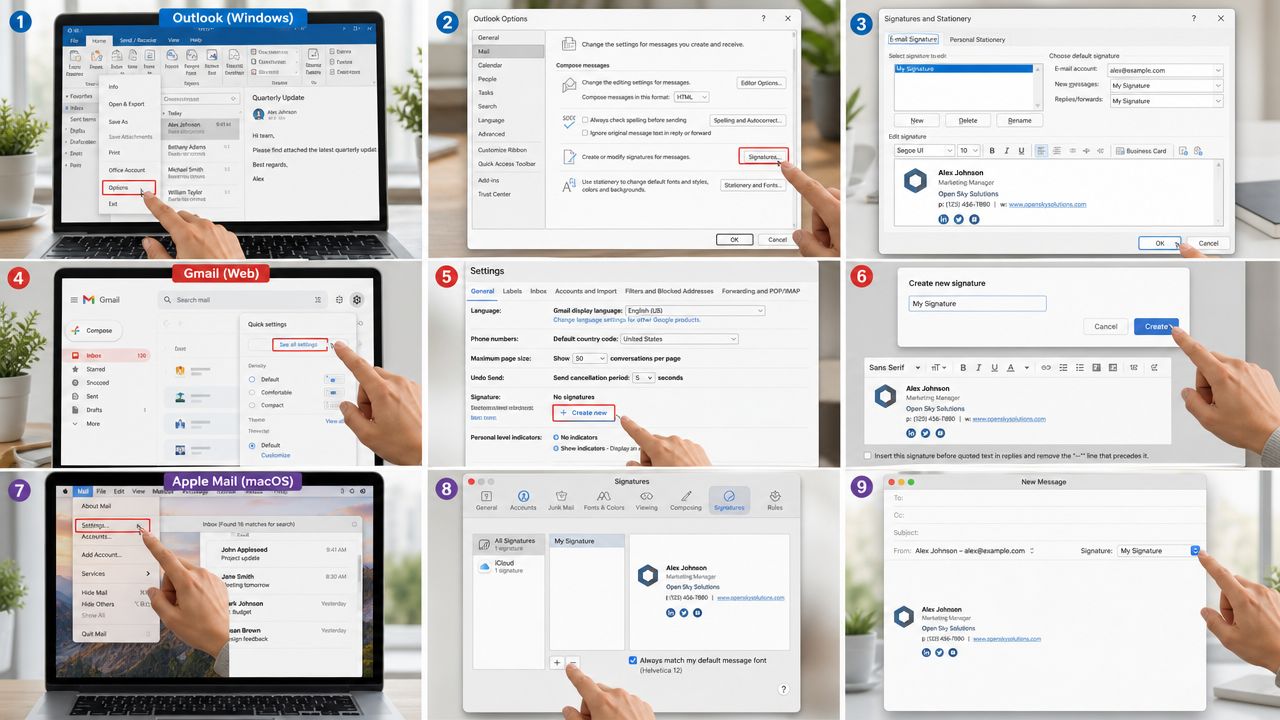
Gmail
Gmail is usually the least painful option for individual setup, but it still has a habit of changing spacing and link styling.
Use this process:
- Open Gmail settings and go to the signature editor.
- Create a new signature.
- Paste the rendered signature from a browser view, not the raw HTML, unless you have a controlled method for preserving markup.
- Save it.
- Send a real message to yourself and open it on desktop and mobile.
The key trade-off with Gmail is convenience versus control. Manual setup is fast, but every member of staff can introduce small changes that weaken consistency. That matters if you want signature traffic to support measurable local SEO. A branch manager in Leeds should not be linking to the homepage while a sales rep in Bristol links to the correct location page with tracking attached.
For teams that live in Google Workspace, these advanced Gmail signature strategies are useful because Gmail has its own formatting quirks.
Outlook desktop and Outlook web
Outlook is less forgiving.
Desktop Outlook often creates the biggest problems because Word-based rendering can distort line-height, spacing, and image placement. Outlook on the web is usually better, but it is still a separate environment and needs its own check.
A few rules save time:
- Paste the finished signature, not loose fragments copied from different files.
- Avoid heavy editing inside Outlook after pasting. Small visual tweaks can break the table structure underneath.
- Test from the exact version your staff use. Outlook for Windows, Outlook for Mac, and Outlook on the web do not behave the same way.
- Send a live email after setting it as default. The editor view is not reliable enough on its own.
If your team uses signature links to drive quote requests, branch visits, or booked calls, Outlook inconsistency becomes a reporting problem as much as a formatting one.
Apple Mail
Apple Mail usually preserves visual formatting better, which makes it popular with directors and small business owners who want a quick manual install.
The catch is compatibility at the receiving end. A signature that looks clean in Apple Mail can still land in Outlook and pick up odd spacing or wrapping. Keep the layout narrow, use simple typography, and avoid complicated blocks that depend on perfect rendering.
A short video walkthrough can help if you're rolling this out for non-technical staff:
Team rollout versus one-off setup
Installing one signature is admin. Installing the same signature across a business is a systems problem.
Set one approved master version. Limit editable fields to name, job title, phone number, and direct email. Keep the tracked link structure fixed so traffic stays attributable in analytics. That is how a signature becomes a useful lead source instead of a decorative footer.
For local firms, I usually recommend linking each person to the most relevant commercial page, such as a service page, location page, or booking page, rather than sending every click to the homepage. That gives you cleaner intent signals and a better chance of turning routine email traffic into measurable enquiries.
If you need help standardising a business contact point before a wider rollout, the simplest route is to contact Bare Digital.
Testing Your Signature and Fixing Common Problems
A signature isn't finished when it looks right in the editor. It's finished when it survives real sending conditions.
That means testing it where your recipients will read it. You don't need expensive software to start. A few live accounts across major platforms will expose most of the obvious issues quickly.
A simple testing workflow
Set up a small manual test loop:
- Send to Gmail. Check spacing, images, and link styling.
- Send to Outlook. Check alignment, line-height, and odd gaps.
- Send to an iPhone or Android device. Check scale and readability.
- Forward the message. Some signatures break only after forwarding or replying.
- Reply from the same thread. This shows whether the signature stays clean in real use.
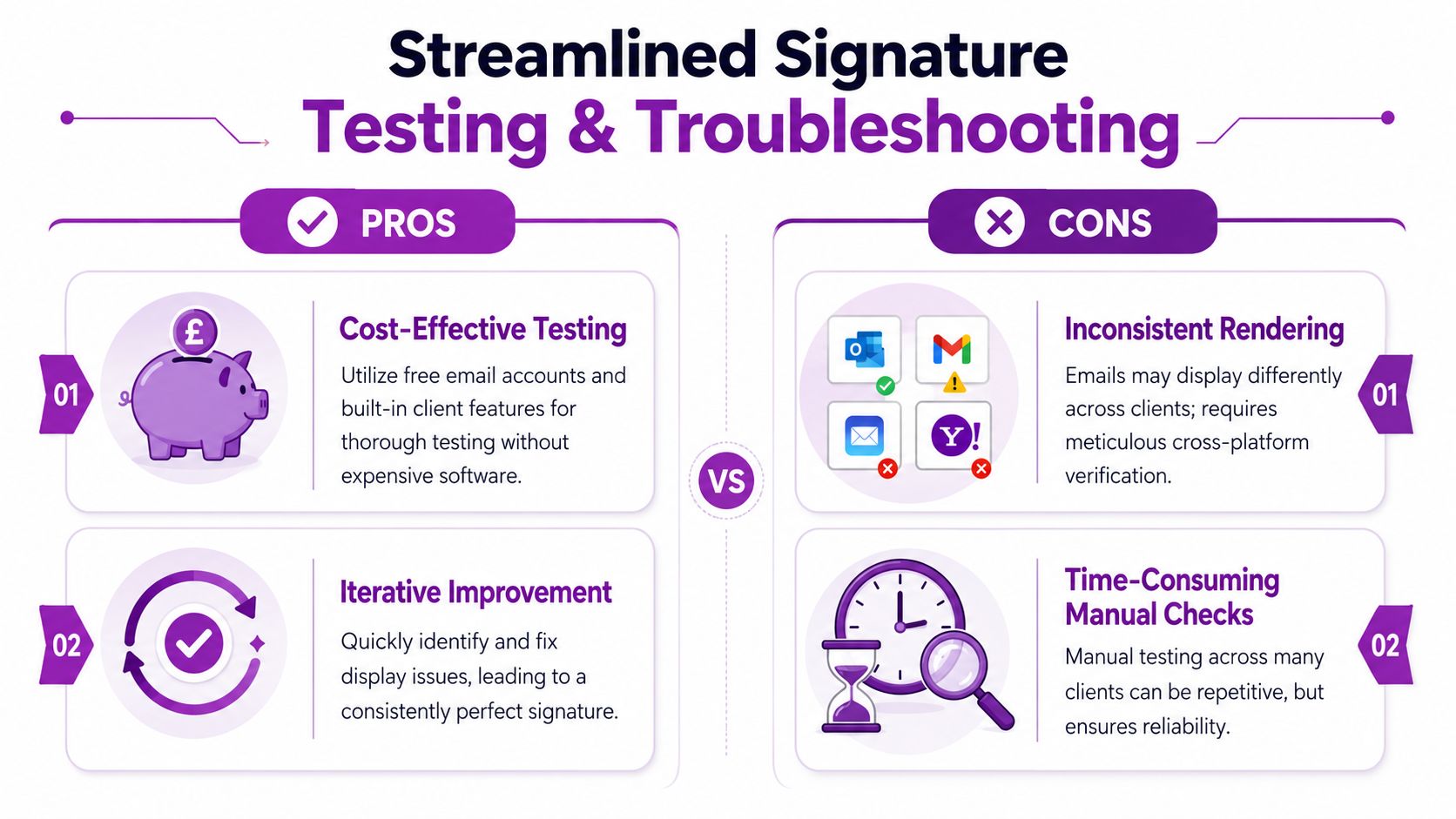
That small process catches most of what matters. The point isn't perfection in every edge case. The point is reliability in the clients your audience uses most.
If you see this, do that
Here's a practical troubleshooting table:
| Problem | Likely cause | What to do |
|---|---|---|
| Double spacing in Outlook | Paragraph tags or inconsistent line-height | Replace extra <p> usage with tighter table cell structure and inline styles |
| Images appear as attachments | Incorrect insertion method or client behaviour | Recheck how images are hosted and how the signature was pasted into the client |
| Logo doesn't display | Broken image URL or blocked external image | Verify the absolute URL and add useful alt text |
| Layout breaks on mobile | Signature too wide or too complex | Reduce width, simplify columns, shrink imagery |
| Links don't work | Pasting process stripped formatting or malformed href | Test each link in the sent email, not just in the editor |
Test the sent email, not the signature editor preview. The preview lies more often than people realise.
Watch for truncation and clipping issues
One issue people miss is message clipping. If the overall email becomes too heavy, some clients truncate what the recipient sees. The signature isn't always the only cause, but bloated HTML and unnecessary imagery can contribute to the problem.
If you've seen emails where the bottom section disappears or the message looks cut off, this explanation of email truncation errors from CleanMyList is a useful reference for diagnosing the wider issue.
Build a repeatable review habit
The best teams don't treat signature testing as a one-time launch task. They review it when any of these change:
- A new logo is introduced
- A phone number or office address changes
- A new campaign CTA is added
- Staff switch email clients
- A team starts using mobile more heavily
For local businesses, it also helps to review whether your signature still supports the right location signals and destination pages. If your core search presence changes, your signature should point to the right places. A practical benchmark for that wider review is a proper Google Business Profile audit tool, because local visibility works best when every customer touchpoint supports the same location strategy.
HTML Signature Frequently Asked Questions
Should you use a signature generator or code it manually
It depends on what you need to control.
A generator is fine if your needs are simple, your branding is stable, and you don't want to maintain HTML yourself. It can save time and reduce user error. The downside is that many generators produce bloated markup, limit layout control, or make team-wide changes harder unless you stay inside their system.
Manual coding is better when brand consistency, lean markup, and predictable behaviour matter more than convenience. For agencies, regulated firms, and multi-location businesses, that extra control is usually worth it.
Why can't you use custom fonts reliably
Because email clients don't behave like browsers.
Many clients ignore web fonts or replace them inconsistently. That means a carefully chosen brand typeface can fall back to something unexpected depending on where the email is opened. In signatures, consistency beats originality. Email-safe fonts are dull, but they travel well.
Can a signature help local SEO directly
Not in the same way as a location page, internal link structure, or Google Business Profile optimisation.
What it can do is support local relevance and local conversion. If your signature includes clear place cues, links to the right local page, and consistent business details, it strengthens the path between email conversations and location-based actions. That matters when someone is deciding whether to call, book, or check your office details.
Should you add social icons
Only if they serve a purpose.
If your audience uses LinkedIn to validate your company or Instagram to review your work, one or two icons can help. If they're just there because every signature template includes them, leave them out. Most signatures carry too many low-value links already.
How much information is too much
If the recipient has to hunt for the useful bit, there's too much.
A strong signature has hierarchy. Name first. Role second. Essential contact routes next. Legal text lower down in smaller styling. One CTA if needed. That's enough for most businesses.
The best signature is the one a recipient understands in a quick glance.
How do you manage signatures for a whole team
Start with one approved master version and make only a few fields editable.
Don't let each employee build their own variation. That's how logos drift, colours change, phone formats become inconsistent, and required disclosures get lost. Keep a controlled base template and a short install process. If you need campaign variants, create separate approved versions rather than asking staff to improvise.
Should every team member have the same CTA
Not always.
A sales team may benefit from a booking link. A service team may need a support page. A location manager may need a branch page. The structure should stay consistent, but the destination can change if the business purpose changes too.
Do you need separate signatures for mobile and desktop
Usually not. You need one compact signature that degrades gracefully.
If the layout only looks good on a wide desktop screen, it's too ambitious. The safer route is a narrow, simple, stacked design that still reads well on mobile. Email signatures reward restraint far more than cleverness.
If your business depends on local intent, location pages, and measurable enquiry paths, your signature should align with the same fundamentals used across your wider search presence. A practical place to sense-check that is this local SEO checklist.
If your business wants more than a tidy footer, Bare Digital helps UK companies turn visibility into measurable local leads with practical SEO, clearer conversion paths, and location-focused growth.