
You're probably here because your business email setup feels overdue.
Maybe you're still replying to enquiries from a personal Gmail account. Maybe your web designer connected a domain years ago, but nobody's quite sure where the mail resides. Or maybe you've just registered a company domain and want to get it right before quotes, invoices, and contact form leads start moving through it.
That matters more than most owners expect. Email isn't just an inbox. It's part of your brand, part of your security, and part of whether customers ever see your messages at all.
A basic guide will show you how to create an address. A useful guide shows you how to set up email accounts so they look professional, work across devices, and don't get mistaken for spam. That's the difference between having email and running a dependable business system.
Moving Beyond a Generic Email Address
A lot of UK small businesses start the same way. A tradesperson sends estimates from a personal account. A caterer uses an old broadband email address. A new consultancy puts a mobile number on the website and handles everything from one inbox that was never meant to represent a business.
It works, up to a point.
The problem is that customers notice the details. An address like [email protected] looks established. It matches your website, your invoices, and your Google Business Profile. It also makes life easier when you want to hand enquiries to staff later, instead of keeping everything tied to one person's personal login.
There's a second issue most owners only discover after they've grown. Personal email accounts don't give you much control over brand protection, team access, or mailbox structure. Once you need separate addresses for enquiries, support, and sales, the setup starts to matter.
Practical rule: If a customer is trusting you with money, personal details, or a booking, they should see a branded business email address.
Professional email also creates cleaner operations behind the scenes. Role-based addresses such as enquiries@, sales@, and support@ help you route messages properly and avoid missed leads. That matters just as much as presentation.
If your wider online presence still feels pieced together, Bare Digital's local SEO agency is a useful reference point for how branding, search visibility, and customer trust fit together. Email should support that same consistency.
Choosing Your Professional Email Platform
The first real decision isn't the email address itself. It's the platform behind it.
For most UK small businesses, the practical options are Google Workspace, Microsoft 365, or cPanel/hosted email from your web host. All three can work. The best choice depends on how your business operates day to day, how many people need accounts, and how much admin you want to manage.
What each option is really for
Google Workspace suits businesses that already live in Gmail, Google Drive, Docs, and Sheets. It's usually the easiest move for owners who want a familiar interface and simple setup for a small team.
Microsoft 365 makes more sense if your business already uses Outlook, Word, Excel, and Teams. For firms with office-based staff, shared calendars, and a lot of attachment-heavy work, it often feels more natural.
cPanel or hosted email is usually the budget-friendly route. It gives you domain email without the wider collaboration suite. For a sole trader or a very small company that mainly needs branded inboxes and basic webmail, that can be enough. The trade-off is that administration, storage planning, and deliverability checks often need more hands-on attention.
Email Provider Comparison for UK Businesses (2026)
| Feature | Google Workspace | Microsoft 365 | cPanel/Hosted Email |
|---|---|---|---|
| Best fit | Small teams already using Gmail and Google Drive | Businesses using Outlook, Office apps, and Teams | Small firms wanting simple branded email on their hosting |
| User experience | Clean, familiar Gmail interface | Strong Outlook and Microsoft ecosystem integration | Depends on host and webmail interface |
| Collaboration tools | Docs, Sheets, Drive, Meet | Word, Excel, Teams, OneDrive | Usually limited or separate |
| Admin control | Strong central admin tools | Strong central admin tools | Varies by hosting provider |
| Scalability | Good for growing teams | Good for growing teams and structured departments | Fine for simple setups, less elegant as complexity grows |
| Typical trade-off | Great simplicity, but some firms prefer Outlook workflows | Powerful for structured businesses, but can feel heavier to manage | Lower cost, but weaker collaboration and more manual setup work |
How to decide without overthinking it
Start with how your team already works.
- If you use Gmail personally and want minimal friction, Google Workspace is usually the easiest transition.
- If your staff already rely on Outlook and Microsoft files, Microsoft 365 is often the safer operational choice.
- If budget matters most and your needs are straightforward, hosted email through cPanel can be perfectly workable.
Campaign Monitor's guidance for email strategy is useful here because it pushes businesses to structure lists and audiences from the start, rather than dumping everybody into one generic bucket. It recommends building from existing customer data and using segmentation early, including self-segmented sign-up lists, in its email marketing getting started guide. That same logic applies to account setup. Separate business functions early, and your email becomes easier to manage later.
If you're weighing Microsoft seriously and want a business-focused overview of the ecosystem, this guide to Microsoft 365 for Canadian businesses is helpful because the platform considerations are largely operational rather than location-specific.
What doesn't work well
One inbox for everything rarely lasts.
It creates a mess fast. Sales enquiries mix with supplier emails, website forms, receipts, and support issues. Nobody knows who should reply. Messages get missed.
A better starting structure is simple:
- Customer-facing mailbox for enquiries
- Individual staff mailboxes for named users
- Role-based mailbox or alias for support or sales
- Marketing system kept separate from everyday business correspondence
That separation improves clarity now and makes later security and deliverability work much easier.
Creating Your First Domain Email Accounts
Monday morning is a common failure point. A new enquiry lands in info@, a supplier replies to an old thread in sales@, and nobody is sure who owns either inbox. The mailbox was easy to create. The harder part is setting up names, permissions, and ownership clearly enough that your team can use them without messages going missing.
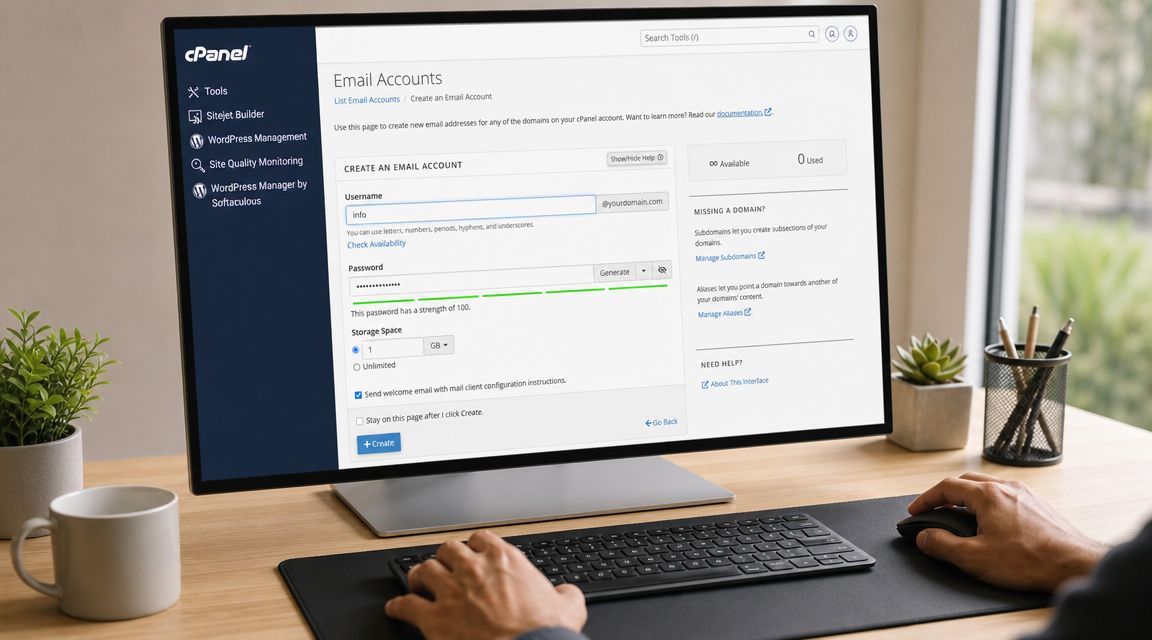
If your email is hosted through standard web hosting, you will usually create accounts in cPanel under Email Accounts. In Google Workspace or Microsoft 365, you do the same job in the admin console. The screens differ, but the setup decisions are the same. Pick account names people understand, keep access tight, and avoid creating inboxes that nobody will check.
A practical first setup
Start with the mailboxes that match real work:
Create one monitored general inbox
[email protected] or [email protected] works well for first contact. Only use it if someone is responsible for checking it every working day.Create named accounts for staff who send customer email
Use [email protected] for anyone handling quotes, bookings, or account management. Named accounts improve accountability and make it easier to spot suspicious login activity later.Use role addresses only where the function matters more than the person
sales@, support@, and accounts@ are sensible. Ten variations of the same idea usually cause confusion.Set strong passwords from the start
Shared passwords passed around on WhatsApp are an avoidable risk. Give each user their own login and store credentials in a proper password manager.Set mailbox size with some discipline
Small teams often let one inbox become a dumping ground for attachments, scanned documents, and old replies. Set a reasonable quota for each role and archive where needed instead of letting storage sprawl.
The best early structure is usually small. One general inbox, a handful of named users, and a couple of role addresses covers a lot of small UK businesses.
That also makes later security work easier. If you know exactly which accounts send normal business email, it is far simpler to validate legitimate senders when you add SPF, DKIM, and DMARC. If you work in a sector with tighter compliance expectations, this guide on how to secure M365 for regulated sectors is a useful reference for the policies and authentication steps that often get missed.
Naming choices that age well
Use a pattern customers can guess without thinking.
A simple structure that holds up well looks like this:
- info@ for general enquiries
- sales@ for new business
- support@ for customer service
- accounts@ for billing
- firstname@ for individual staff
What tends to age badly is a mix of random formats such as johnsmith@, office1@, hello.team@, and admin-enquiries@. Keep it consistent across the business. That helps customers, and it helps your team spot fake messages that do not fit your normal naming pattern.
If your business relies on local lead generation, the same principle applies to your website structure. Clear service routes usually convert better than cluttered ones, which is why focused pages such as SEO for wedding venues are easier to support with a clean enquiry path and matching mailbox setup.
Google Workspace and Microsoft 365
In Google Workspace, create users in the Google Admin console and add aliases only where they serve a clear purpose.
In Microsoft 365, create users in the Microsoft 365 admin centre under active users. Then check the mailbox settings in Exchange admin if you need shared mailboxes, forwarding rules, or aliases.
One practical point matters here. A shared mailbox is not the same as a user mailbox. If three people need access to support@, a shared mailbox is often cleaner than giving everybody the password to one account.
This walkthrough gives a useful visual of the general process before you start clicking around in your own dashboard:
Before you finish, test each new address properly. Send a message in, reply out, check forwarding if you have set it, and confirm the right person receives notifications. Small setup mistakes are common at this stage, and they are much cheaper to catch before the inbox goes on your website, invoices, and email signature.
Configuring DNS for Reliable Email Delivery
A small business can set up a mailbox in half an hour and still lose enquiries because the domain is not trusted by receiving mail servers.
That trust sits in DNS. If the records are wrong, incomplete, or left on default settings, quotes, invoices, booking confirmations, and contact form replies can end up in spam or fail authentication checks. For a UK firm, that is a reputation problem as much as a technical one.
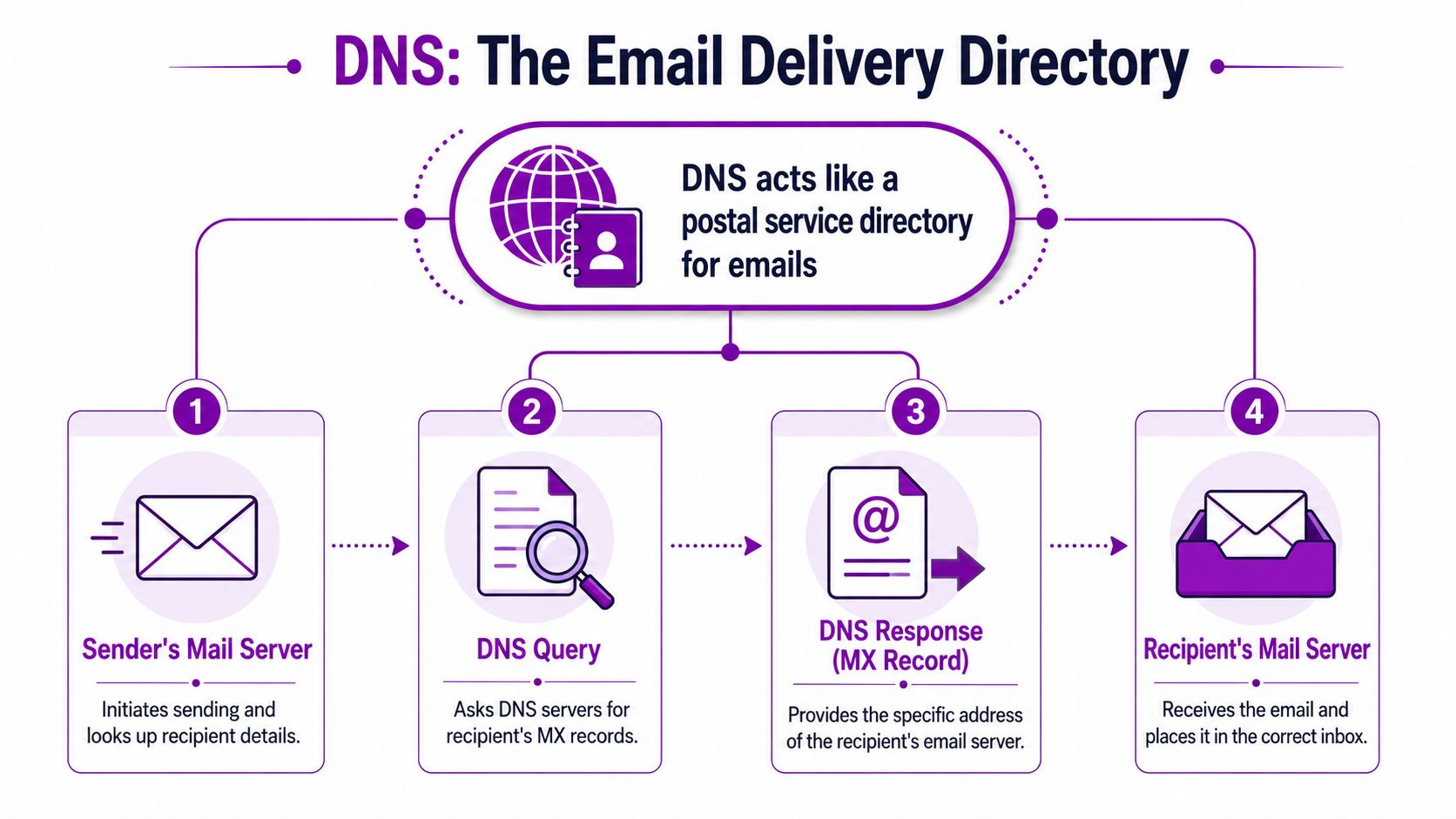
The three records that matter most are SPF, DKIM, and DMARC. Basic setup guides often mention them briefly, then move on. That misses the point. These records decide who is allowed to send from your domain, whether messages can be verified, and how other mail providers should treat suspicious mail that claims to be from your business. This SPF, DKIM and DMARC explainer video gives a useful overview if the terms are new.
What these DNS records actually do
DNS is the public set of instructions attached to your domain. For email, the core records do different jobs:
| Record | Plain-English purpose | Why it matters |
|---|---|---|
| MX | Tells the internet which mail server receives your email | Incoming mail can route to the wrong place, or nowhere at all, if this is wrong |
| SPF | Lists the services allowed to send email for your domain | Receiving servers can spot messages sent from unauthorised systems |
| DKIM | Adds a signature to each message | Helps prove the message came from an approved source and was not altered |
| DMARC | Sets the policy for failed authentication checks | Gives providers instructions on whether to allow, quarantine, or reject suspicious mail |
The practical setup order
The safest order is usually straightforward. Add the mailbox or tenant first. Confirm the MX records. Then publish SPF and enable DKIM through your email platform. Add a DMARC record after that, starting with monitoring if you want to see what is already sending on behalf of your domain before enforcing stricter rules.
That sequence matters because DMARC depends on SPF or DKIM passing correctly. If you publish a strict DMARC policy too early, genuine messages from your website, CRM, or mailing platform can start failing.
Why DMARC matters for small firms
Spoofing is not just a problem for national brands. I have seen small firms impersonated in invoice chases, fake “updated bank details” emails, and copied contact messages sent to customers. The domain looked real. The message was not.
DMARC reduces that risk. It tells receiving servers what to do when a message claims to come from your domain but fails authentication. It also gives reporting data, which helps you spot unknown sending services, old systems still using your domain, or abuse attempts.
Key point: A domain with no SPF, DKIM, and DMARC is easier to impersonate and harder to trust.
If you use Microsoft 365 and need a more security-focused implementation reference, especially where governance matters, this guide on secure M365 for regulated sectors is a useful practical read.
Two mistakes that cause avoidable pain
The first is treating DNS as a one-off job. Website rebuilds, hosting changes, new form plugins, and newsletter platforms often add or replace records. One careless update can break authentication or remove a record that was working fine.
The second is forgetting every system that sends mail. Your staff inboxes are only part of the picture. Contact forms, ecommerce tools, booking software, accounting platforms, and CRMs may all send from your domain. If they are not included in SPF, or configured to sign with DKIM where supported, deliverability suffers and the chance of failures goes up.
A quick sense check helps. List every service that sends email as your business, then compare that list with your current DNS records. If the two do not match, fix that before you blame Outlook, Gmail, or the spam filter.
If you are already reviewing trust signals across your online presence, a Google Business Profile audit tool for local visibility checks often highlights the same pattern. Small technical gaps can undermine credibility long before the owner realises.
Connecting Your New Inbox to Your Devices
Once the mailbox and DNS are sorted, the next step is making the account usable across real working devices. That usually means one desktop app, one phone, and often a second device for the owner or office manager.
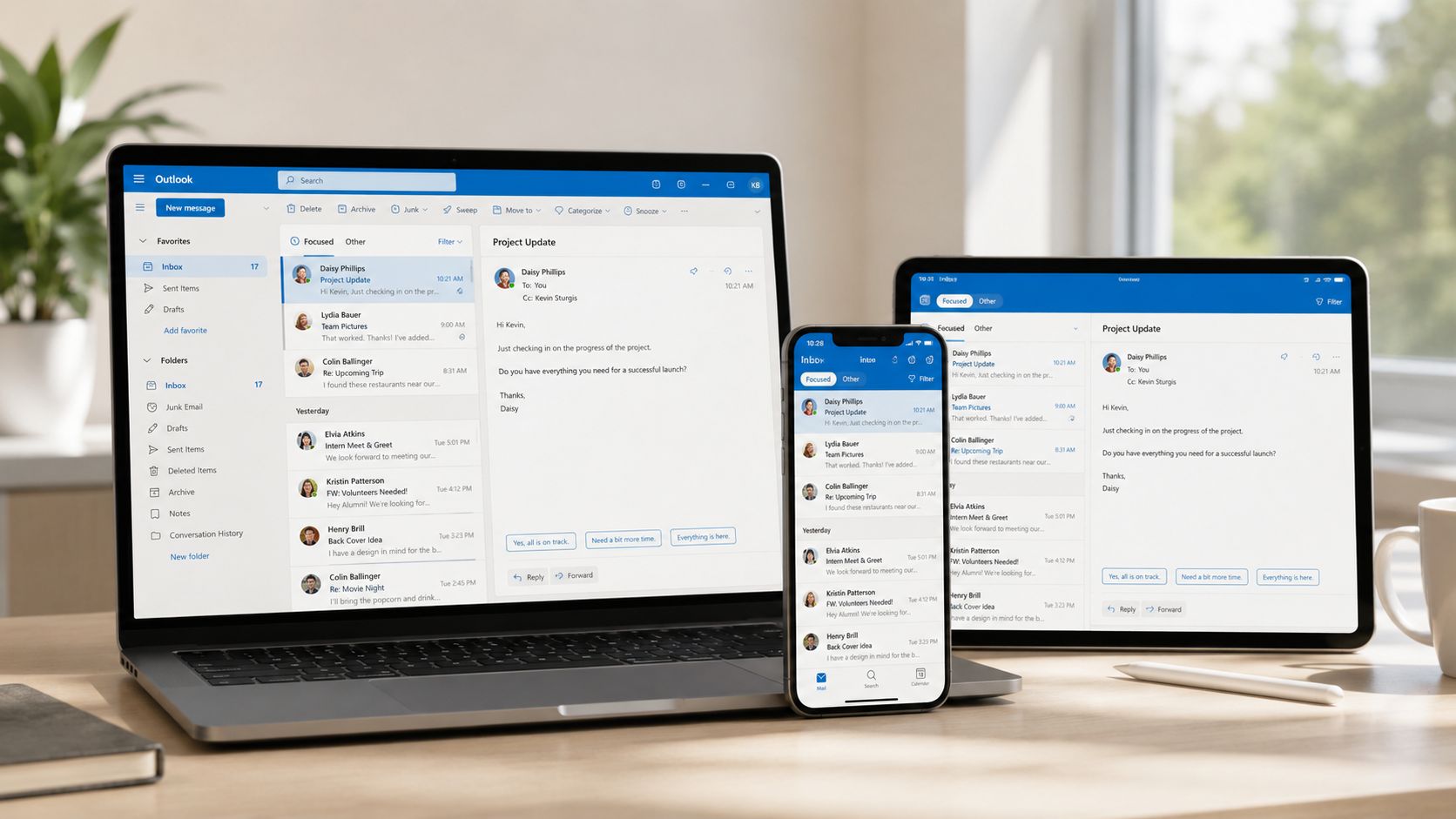
The best default choice for most businesses is IMAP, not POP. IMAP keeps the inbox in sync across devices, so what you read or file on your laptop appears the same on your phone. POP is more limited and can create confusion when staff use more than one device.
iPhone and Android setup
For mobile setup, the usual path is straightforward. On iPhone, open Settings > Mail > Accounts. On Android, many users add the mailbox through the Gmail app or the phone's mail settings. You enter the full email address and password, then complete any verification step.
Age UK notes in its email essentials guide that providers commonly require a phone number for verification, and the email address itself must be unique, so users may need to try variants during registration.
That matters in practice because mobile setup often fails for ordinary reasons, not technical disasters. A mistyped password, an old saved login, or a missed verification prompt is usually the culprit.
Outlook and Apple Mail
On desktop clients, the general process is similar:
Microsoft Outlook
Add a new account, enter the email address, and let autodiscovery try first. If it can't detect settings, use the incoming and outgoing server details from your hosting provider or platform admin area.Apple Mail on Mac
Choose to add a new account, select the relevant account type or other mail account, and enter the full login details. If automatic setup fails, manual server settings may be needed.Webmail as a fallback
If the desktop app refuses to cooperate, log into webmail first. That tells you whether the mailbox itself works before you blame the device.
Where businesses usually get stuck
App passwords and two-step verification are the main stumbling blocks once basic login is correct. If you've enabled stronger account security, some older mail apps won't accept the normal password and will need an app-specific login method instead.
If a new mailbox works in webmail but not on the phone, the account probably isn't broken. The device configuration is.
Keep a record of the incoming server, outgoing server, username format, and any security requirements before you start adding devices. That single habit saves a lot of needless frustration.
Securing and Managing Your Business Email
A working mailbox isn't the finish line. It's the point where email becomes part of your risk management.
The weakest business email setups usually fail in ordinary ways. Shared passwords. Former staff still having access. Everyone forwarding everything everywhere. No one knowing whether sales@ is an alias, a real mailbox, or just one person's personal inbox in disguise.
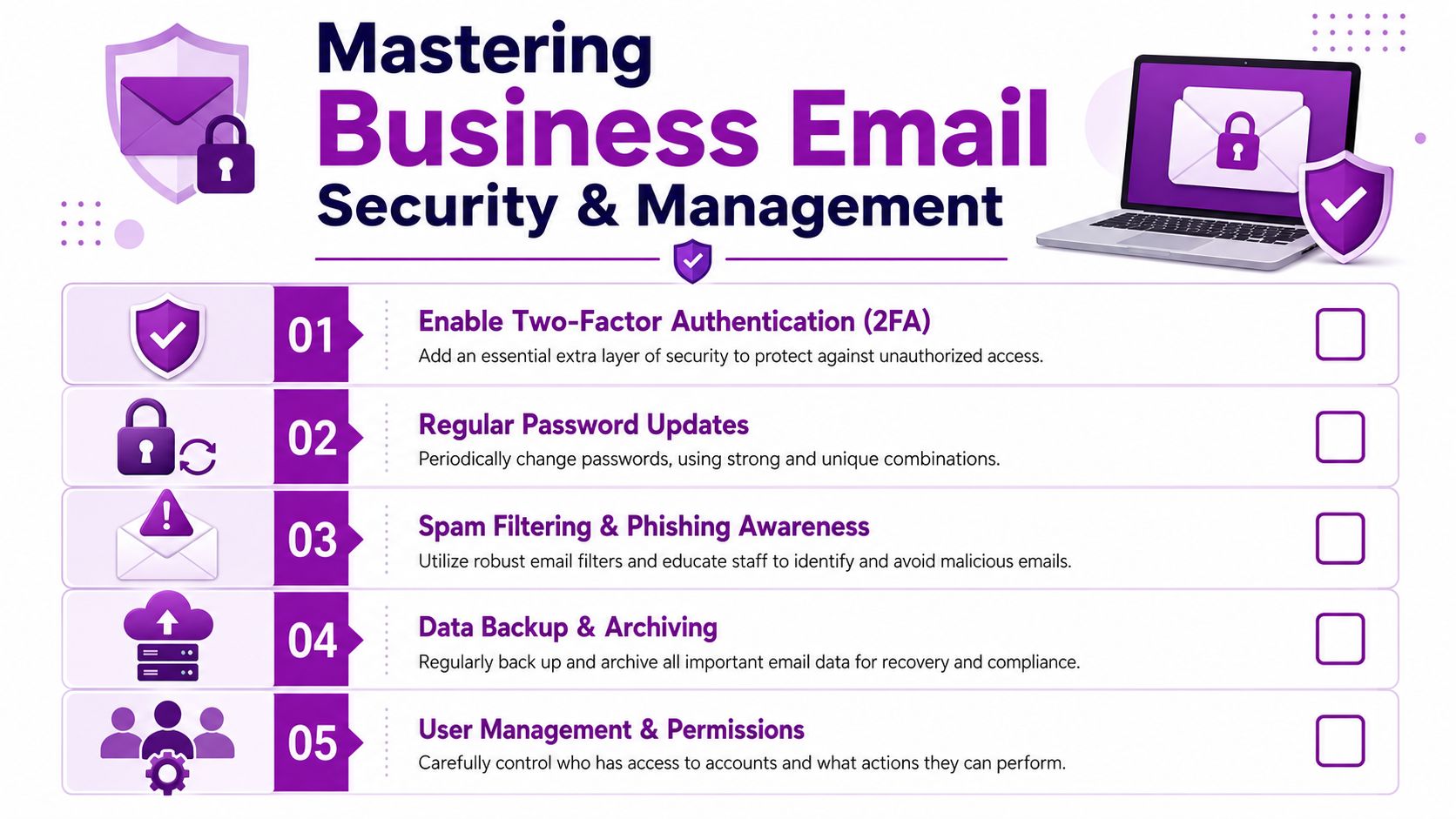
Secure the accounts first
Start with the basics that reduce risk:
- Enable two-factor authentication wherever your platform supports it
- Use unique passwords for every user
- Set recovery methods properly so a lost phone doesn't lock out the business
- Remove access quickly when staff or contractors leave
The UK-focused operational gap here is often mobile-first setup. Many users manage email primarily on phones, so account recovery, app passwords, sync settings, and strong authentication need to work on iOS and Android as well as desktop. Enspiral's email accounts guide is useful background on that cross-device reality.
If you want a broader operational checklist, this resource on email security best practices for MSPs is relevant even for small in-house teams because the principles are the same: reduce access risk, harden accounts, and train people to spot suspicious messages.
Manage aliases, shared inboxes, and migration sensibly
Not every address needs a full paid mailbox.
Use an alias when mail should land in one person's inbox under a different public-facing address. Use a shared mailbox when multiple people need to read and reply from the same identity. Use a full separate account when one user needs independent access, storage, and responsibility.
Migration needs the same common-sense approach. Before moving old email into the new system:
- Decide what needs to be kept
- Export or migrate in a controlled order
- Test access before closing the old service
- Keep forwarding in place temporarily if needed
Don't ignore compliance
For UK businesses, email systems and sign-up forms changed materially with GDPR from 25 May 2018, and marketing collection now needs a lawful basis, a clear privacy notice, and proper consent handling. Best practice also includes collecting consent in the sign-up form and using double opt-in, as outlined in this database-building guide from MailUp.
That's not just a marketing issue. It affects how contact forms feed inboxes, how mailing lists are built, and who can access customer data.
If you're tightening up the rest of your digital presence at the same time, a broader operational review like this local SEO checklist can help you spot where enquiries, forms, and local visibility aren't aligned.
Your Email Setup Questions Answered
How many email addresses does my small business actually need
Most small businesses need fewer than they think, but more than one.
A solid starting point is one general contact address, one named account per staff member who deals with customers, and one or two role-based addresses such as sales or support. The key is monitoring them properly. Five managed inboxes are better than fifteen neglected ones.
Can I use my domain name with a free email provider like Gmail
You can sometimes route or forward mail in ways that mimic this, but it's rarely the best long-term setup. Free consumer email tools usually aren't designed for proper business administration, staff control, or dependable domain-level authentication.
If you want branded email that your team can manage properly, use a business platform tied to your domain.
What's the difference between an alias, a distribution group, and a shared mailbox
An alias sends mail to an existing inbox. It's useful when one person handles multiple public addresses.
A distribution group sends one incoming message to several recipients at once. It's good for announcements, less so for coordinated customer replies.
A shared mailbox gives a team access to one common inbox so they can read, reply, and manage messages together. For customer-facing departments, that's usually the most practical option.
If you've still got open questions about account structure, migrations, or deliverability, you can contact Bare Digital for guidance.
If your business needs more than a basic inbox, Bare Digital can help you tighten the wider system around it. That includes the local search visibility, enquiry pathways, and trust signals that turn a professional email setup into more leads and better-quality customer contact.