

You send the email. Then you see it.
The wrong attachment. A name spelt incorrectly. A quote sent to the wrong person. The client copied in when they shouldn’t be. In a busy business inbox, that moment happens fast, and the stress hits even faster.
If you’re searching for how to unsend an email on Gmail, you probably need one of two things. You either need to stop a message that just went out, or you’ve already missed the window and need a clean recovery plan. Both matter. The first saves time. The second protects trust.
That Sinking Feeling When You Hit Send Too Soon
A lot of email mistakes aren’t dramatic when they start. They look small. A misplaced decimal in a quote. A confidential note left in the thread. The wrong person added in CC because someone rushed through the compose box.
If you’ve ever needed a refresher on what CC means in an email, it’s worth checking before your next client message, because one casual copy can create a very public mistake.
For UK businesses, these errors aren’t just awkward. They can cost money and credibility. A single mistyped client email could cost £500-£2,000 in lost leads, and 64% of UK professionals report sending emails with errors, according to the Zapier summary of Gmail Undo Send. The same source notes that Gmail is relied on by 2.1 million SMBs for precise communication.
That lands differently when you think about real work. A wedding venue sends the wrong availability sheet. A construction firm sends a draft figure before it’s checked. A care provider forwards details into the wrong thread. None of that feels like a “small email issue” once it’s left your outbox.
Practical rule: Email mistakes rarely become serious because of the typo itself. They become serious because they create doubt about the rest of your process.
That’s why Gmail’s Undo Send feature matters. It isn’t a novelty feature tucked away in settings. It’s a safety layer for businesses that run on quotes, confirmations, follow-ups and client trust.
I’d also treat email discipline the same way I treat local search visibility. One careless detail can undo a lot of good work. If your business depends on timely client communication and local lead flow, the broader systems around that matter too, which is why many firms also review their digital foundations with specialists such as Bare Digital.
The 30-Second Lifeline How to Unsend on Any Device
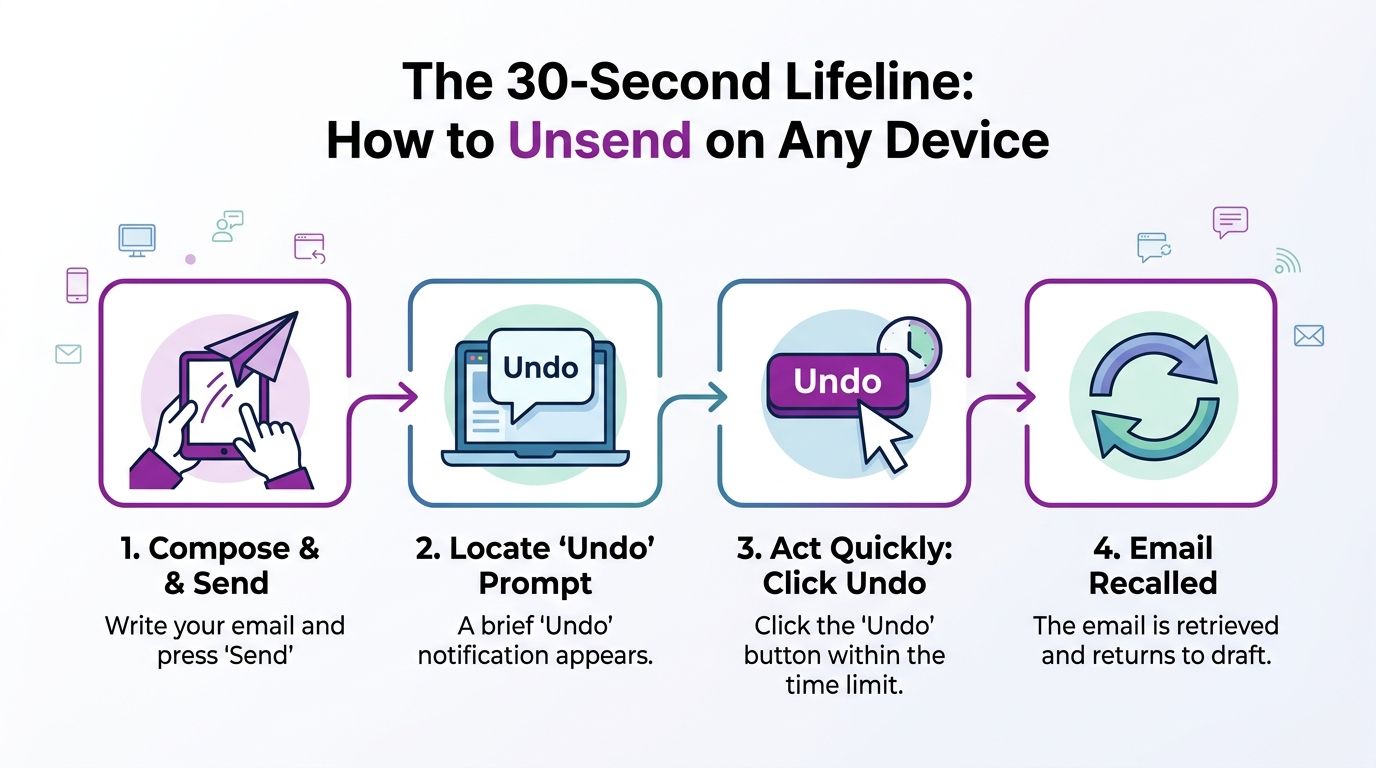
Gmail gives you a short cancellation window after you press send. During that window, the message hasn’t fully gone to the recipient’s inbox yet. If you act in time, Gmail stops it and returns it to draft.
The available windows are 5, 10, 20, or 30 seconds, and if you click Undo within that period, the email reverts to a draft with a 100% success rate because the cancellation happens on Google’s server before relay, according to HelpDesk’s explanation of Gmail Undo Send.
On desktop
Desktop is the clearest place to use Undo Send because the prompt is easier to spot and easier to click.
Here’s what to do:
- Write your email as normal in Gmail.
- Click Send.
- Watch the bottom-left corner of the screen.
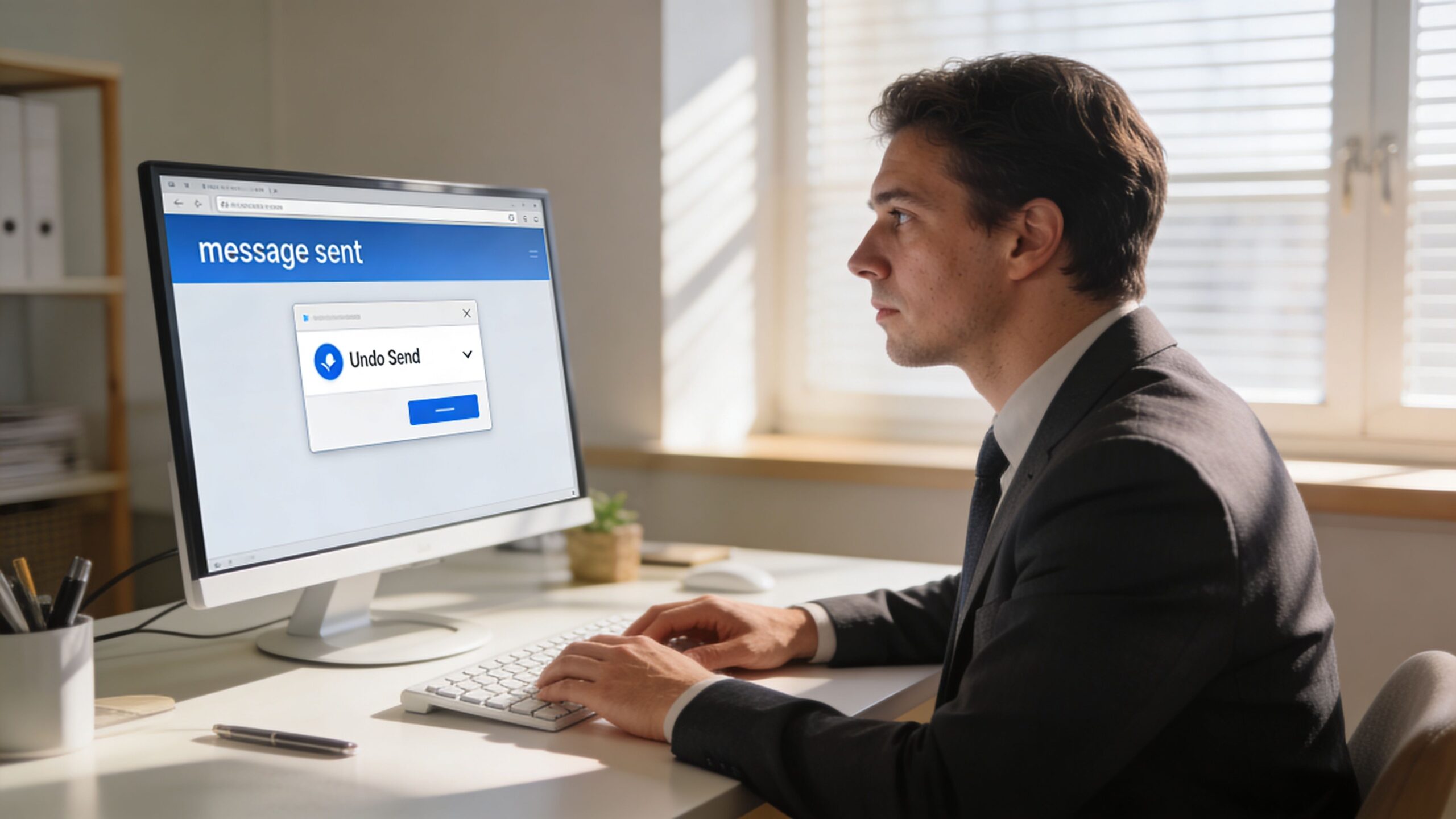
- A small notification appears saying Message sent with an Undo option.
- Click Undo before the timer runs out.
- Gmail pulls the message back into the compose window as a draft.
That last step matters. Gmail doesn’t just stop the message. It reopens it so you can fix the name, swap the attachment, remove a recipient, or rewrite the message before sending again.
On mobile
The Gmail app can also show an undo prompt after sending, but the experience is less forgiving.
The process is simple in theory:
- Send the email in the app.
- Look for the undo bar at the bottom of the screen.
- Tap Undo immediately if you spot a mistake.
In practice, mobile creates more friction. The prompt is easy to miss if you’re walking between jobs, switching apps, or clearing on-screen notifications too quickly. That’s especially relevant for field-based teams such as trades, home care staff or photographers who often send updates from a phone rather than a laptop.
If an email is high-stakes, send it from desktop where possible. The bigger screen and steadier interface make the undo action easier to catch.
What usually goes wrong
Most failed attempts come down to one of these:
- You saw the error too late. The window is short, even at the maximum setting.
- You clicked away too quickly. Once your attention moves elsewhere, the prompt is easy to lose.
- You trusted mobile for something sensitive. Fine for quick updates. Less ideal for contracts, pricing, or anything confidential.
- You assumed Gmail could recall it later. It can’t. Once the window is gone, you need a recovery response, not a recall attempt.
If your goal is to learn how to unsend an email on Gmail, the mechanics are straightforward. The hard part isn’t the feature. It’s training yourself to look for the prompt and react fast enough to use it.
Customising Your Undo Send Cancellation Window
If your Gmail account is still set to the default cancellation period, change it today. Five seconds is too short for most business use. By the time you notice the missing attachment or the wrong recipient, the chance is often gone.
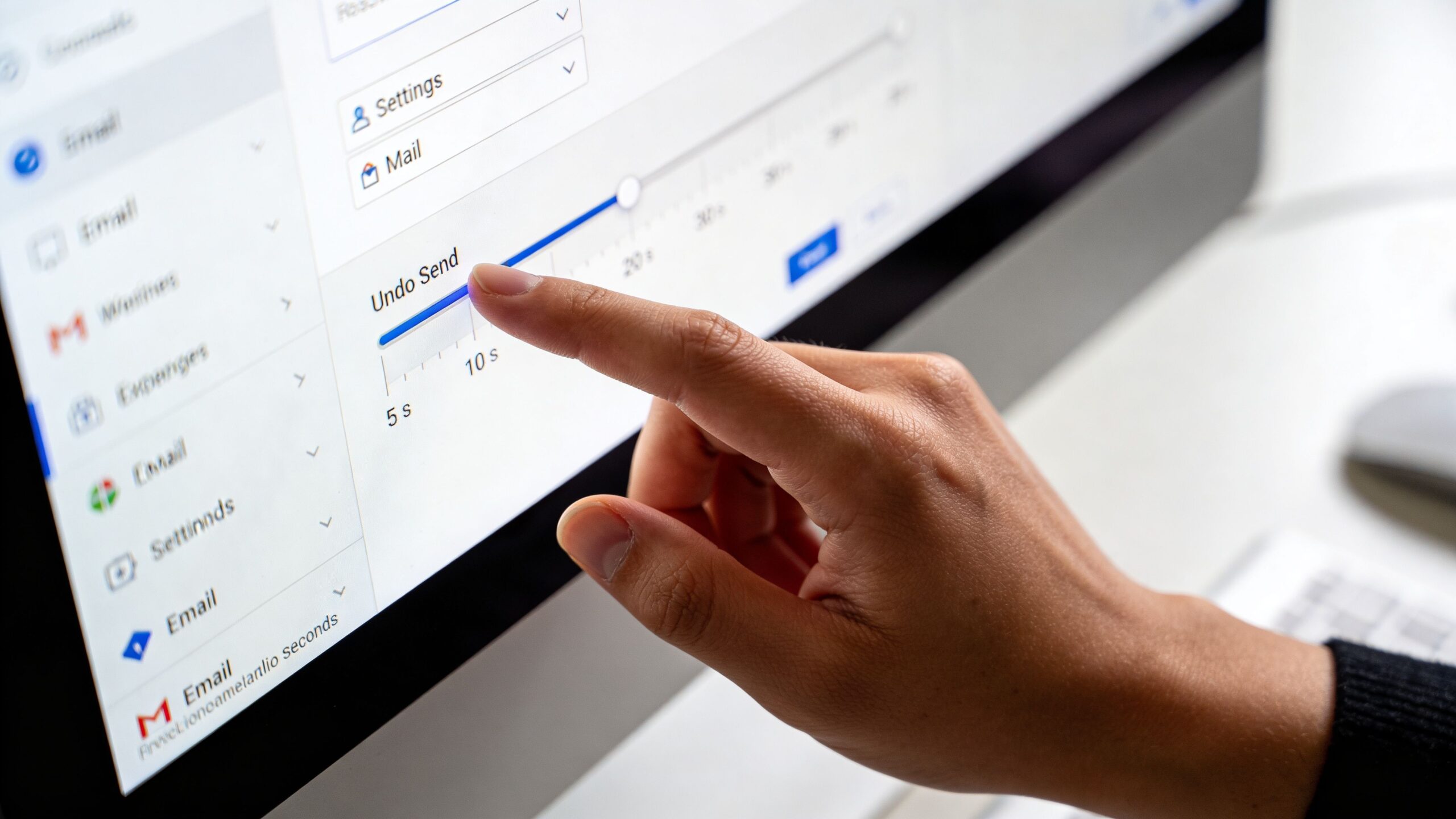
Set it to 30 seconds
This is the setting I’d recommend for almost every small business owner and office team. It costs nothing, takes less than a minute, and gives you breathing room.
To change it in Gmail on the web:
- Click the gear icon in Gmail.
- Select See all settings.
- Stay in the General tab.
- Find Undo Send.
- Choose 30 seconds from the dropdown.
- Scroll down and click Save Changes.
Once that’s done, your account gives you the longest available cancellation period.
Why 30 seconds is the sensible choice
This isn’t about being indecisive. It’s about building in a basic quality-control step.
A short delay helps when you’re:
- Replying too fast: easy to do when clearing a crowded inbox
- Sending revised files: where one old attachment can create confusion
- Working across multiple threads: especially when contact names are similar
- Handling sensitive details: pricing, personal data, or internal notes
Think of the longer window as a zero-cost insurance policy. It won’t stop every mistake, but it gives you a realistic chance to catch the ones people make in day-to-day work.
Useful habit: After pressing send, keep your eyes on the lower part of the screen for a moment instead of jumping straight to the next task.
If you want a quick visual walkthrough, this video shows the setting in context.
One setting change, less panic
The best part of this adjustment is that you only need to do it once. After that, Gmail works with a longer pause every time you send.
For anyone managing client relationships, that’s a better way to work. It turns an impulsive click into a brief review window. That small pause can save a lot of avoidable clean-up later.
Beyond Undo Using Scheduled Send as a Proactive Buffer
Undo Send is reactive. It helps after you’ve pressed send. A better approach for important emails is to avoid the rush entirely.
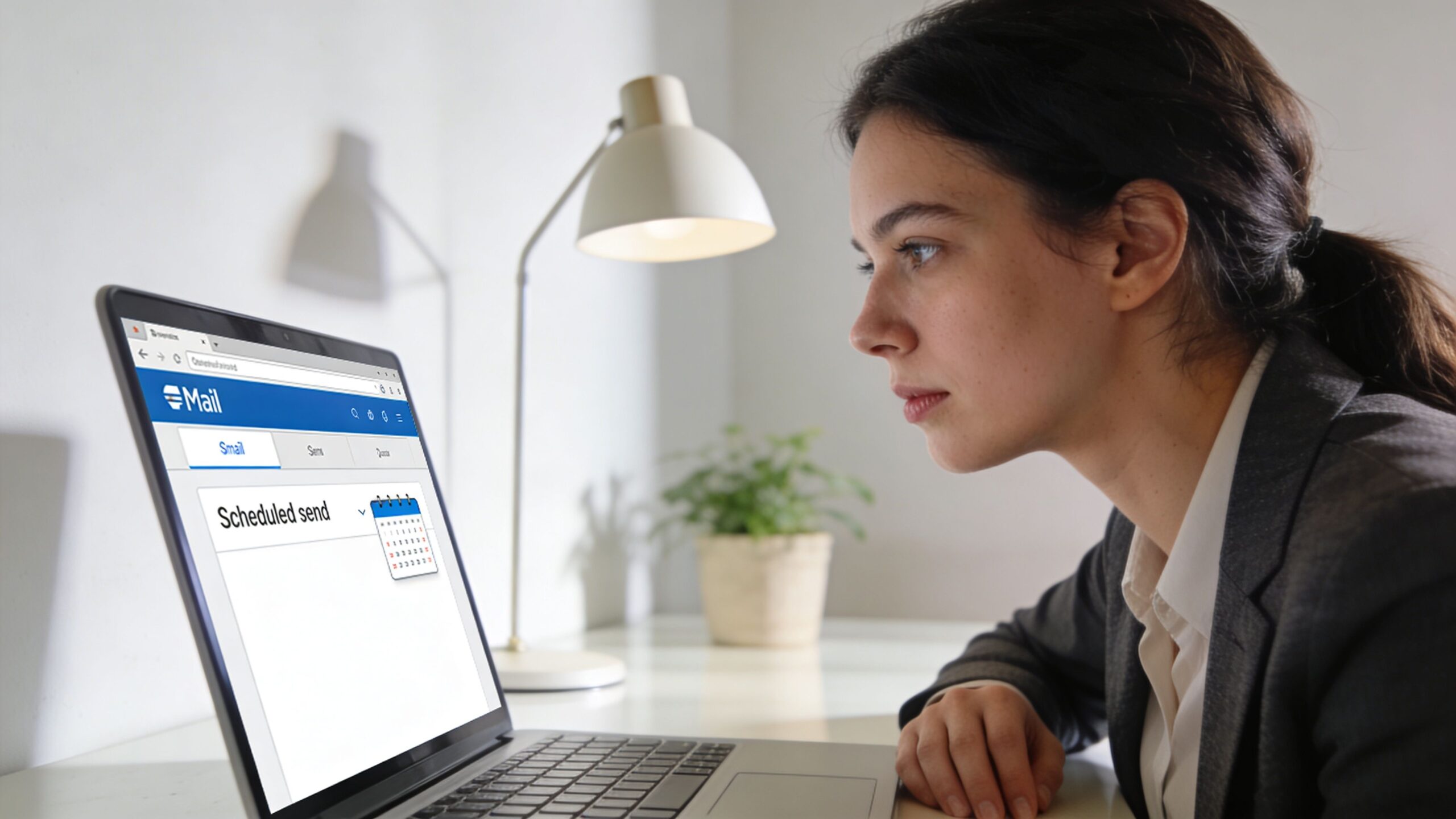
That’s where Scheduled Send earns its place. Instead of relying on a short cancellation prompt, you intentionally hold the message before delivery. For proposals, invoices, onboarding emails, or sensitive follow-ups, that’s a calmer system.
When Scheduled Send is better than Undo Send
Use it when the email has consequences if it goes wrong.
That usually includes:
- Client proposals
- Invoices or payment reminders
- Contracts and scope documents
- Anything with pricing
- Messages with attachments that must be exact
- Emails tied to local lead handling or listings work
If your business relies on a clean customer journey, every communication touchpoint matters. Teams working on visibility and lead generation often benefit from reviewing the surrounding process as well, including tools like a Google Business Profile audit tool.
How to use it well
In Gmail, click the small arrow next to Send, then choose Schedule send. Pick a suggested time or set your own.
That creates a buffer you control. If you spot a problem before the scheduled delivery, go into the Scheduled folder, cancel the send, edit the draft, and reschedule it.
Here’s a simple working rule I like:
| Email type | Best option | Why |
|---|---|---|
| Quick internal reply | Undo Send | Fast and good enough |
| Client quote | Scheduled Send | Gives room for a final review |
| Confidential update | Scheduled Send | Reduces pressure and rushed mistakes |
| Routine confirmation | Undo Send or Scheduled Send | Depends on urgency |
A stronger habit for busy teams
Scheduled Send works best when you treat it as part of your process rather than a feature you remember occasionally.
A practical setup looks like this:
- Use immediate send for low-risk messages
- Use scheduled delivery for anything that affects money, timing, or trust
- Re-read from the recipient’s point of view before the scheduled time arrives
That approach removes the 30-second scramble. Instead of trying to catch an error after the fact, you create space for one last check before the email leaves at all.
What To Do When The Undo Window Has Closed
This is the situation many find themselves panicking about. You noticed the mistake too late. The undo prompt has gone. The email has left.
Standard advice often stops at “send an apology”. That’s too thin for real business mistakes. As Letsignit’s discussion of post-undo problems puts it, users need a structured recovery protocol, especially in higher-stakes situations such as confidential information being sent to the wrong person.
First decide what kind of mistake it was
Not every email error needs the same response. Start by classifying it.
| Mistake type | Best next move |
|---|---|
| Minor typo | Usually leave it, unless meaning changed |
| Wrong attachment | Send corrected file immediately |
| Wrong recipient | Act quickly with a direct correction and request |
| Sensitive information | Escalate internally and respond formally |
| Missing information | Send a concise follow-up with the missing detail |
Don’t send a long emotional apology while flustered. Send the right response for the risk level.
Recovery workflow after the send has gone
Use this sequence.
Stop and read exactly what was sent
Don’t work from memory. Open the sent email and confirm the error.Assess who received it
One trusted client is different from a broad list or an unintended external contact.Correct the practical problem first
If the wrong file went out, send the right one. If pricing was wrong, state the correct figure clearly.Acknowledge the error briefly
Keep the tone professional, not dramatic.Escalate internally if the content was sensitive
If the email included confidential or personal information, involve the relevant person in your business immediately.
If you need help handling a higher-risk communications issue, it makes sense to speak directly with a specialist team through the Bare Digital contact page.
Move fast, but don’t ramble. A short, clear correction reads as controlled. A panicked essay makes the situation feel bigger.
Two follow-up templates that work
For a minor business error
Subject: Correction to my previous email
Hi [Name],
Apologies, my previous email included an error. Please use the corrected information below:
[Insert corrected detail]
Thanks,
[Your name]
For a wrong recipient or sensitive send
Subject: Please disregard my previous email
Hi [Name],
Apologies, that email was sent to you in error. Please disregard and delete the previous message.
If needed, I can confirm the correct information separately.
Regards,
[Your name]
What not to do
- Don’t pretend it didn’t happen if the error affects the recipient
- Don’t send multiple corrections in a rush
- Don’t overexplain
- Don’t use humour if the email involved confidential, commercial, or personal information
When the undo window has closed, you’re no longer trying to unsend the message. You’re managing trust. The businesses that handle this best respond clearly, quickly and without drama.
Understanding the Limitations of Unsending Emails
Gmail calls the feature Undo Send, but it helps to think of it as a send delay, not a true recall.
The message is held briefly before full delivery. After that, the opportunity is gone. The feature works by using the natural delay in IMAP/SMTP communication, and once the selected window expires, an irreversible SMTP handoff occurs, according to Mailbutler’s technical explanation of Gmail recall behaviour. The same source cites a 2025 UKIS email security audit showing 87% retraction success with a 30-second configuration, which was a 45% improvement over the 5-second default.
What Gmail can do and what it can’t
A quick comparison makes this easier:
| Scenario | What Gmail can do |
|---|---|
| You click Undo within the active window | Stop the message before delivery |
| The timer expires | Nothing further to retrieve it |
| You want the recipient’s inbox changed afterwards | Gmail can’t do that |
| You need to fix the issue after sending | You must follow up manually |
That distinction matters because people often expect Gmail to “pull back” an email once it has landed. It doesn’t.
Why users get caught out
A few real-world limitations trip people up:
- The feature is time-bound. Once your chosen delay ends, the send is complete.
- It depends on immediate action. If you switch tasks too quickly, you may miss the prompt.
- It isn’t a recipient-side recall. There’s no mechanism to reach into the other person’s inbox and remove the message.
- It shouldn’t be your only safety layer. For anything important, prevention beats recovery.
Gmail is reliable inside its own window. Outside that window, it offers no second chance.
That’s why businesses should treat Undo Send as one part of a wider communication process. If email accuracy matters to your sales, reputation, or local enquiries, the surrounding operational detail matters too. The same mindset applies to visibility reporting and lead quality checks, which is why many firms also keep a close eye on assets such as a Google Business Profile report.
Frequently Asked Questions About Gmail's Undo Send
Can I unsend an email in Gmail after one minute?
No. Once your selected cancellation period has passed, Gmail won’t retrieve the email. At that point, your best option is a correction or damage-control follow-up.
Does Undo Send delete the email from the recipient’s inbox?
No. If you use Undo in time, the message is stopped before final delivery. If you miss the window, Gmail doesn’t remove it from the recipient’s inbox later.
Is Gmail Undo Send the same on desktop and mobile?
The core idea is the same, but desktop is usually easier to use because the prompt is more visible and easier to click. Mobile can work, but it’s easier to miss the notification when you’re moving quickly or switching apps.
Where does the email go if I click Undo?
It returns to your compose window as a draft. That lets you edit the subject line, body text, attachment list, or recipients before sending again.
What if I forgot the attachment?
If you catch it in time, click Undo and attach the file before resending. If not, send a short follow-up with the correct file and a clear subject line.
Can I make Undo Send permanent at 30 seconds?
Yes. You can set the cancellation period to 30 seconds in Gmail settings on the web, and Gmail will use that setting for your account going forward.
Should I rely on Undo Send for important client emails?
No. Use it as a safety net, not your main system. For proposals, pricing, contracts, or anything sensitive, Scheduled Send is the better habit because it builds in review time before the message leaves.
What’s the best subject line for a correction email?
Keep it plain and direct. Good options include:
- Correction to previous email
- Updated attachment
- Please disregard my previous email
- Revised information
If your business depends on local enquiries, fast responses, and professional communication, small process fixes can make a big difference. Bare Digital helps UK businesses tighten the systems behind visibility and lead generation, from Google Business Profile performance to the customer journey that turns searches into enquiries.